Work orders
A work order is the one record for any job: an issue someone reported, a planned service, an inspection or a reading. Everything about the job stays in it: photos, notes, costs, status changes and comments.
Open Work to see them. It has two tabs: Overview and Planning. This article covers the overview; see Planning for the other tab.
An example
A guest tells Ana at reception that Room 208 has no hot water. Ana reports it from the phone, and the report becomes this work order. Here it is once the job is finished:
#14 No hot water in room 208
- Equipment or location
- Water heater (Service room · floor 2)
- Work type
- Corrective
- Performed by
- Own staff
- Priority
- Urgent
- Affects guests
- Yes
- Due date
- 12 March
- Assigned to
- Mike
- Status
- Completed
- Instructions
- Guest moved to Room 210 for now. Check the mixing valve first.
- Recorded costs & downtime
- Parts 38 EUR, 3 hours out of service
Activity & history
- 09:10. Ana reports it, with a photo of the tap.
- 09:20. The manager sets it to urgent, chooses the water heater that serves the room and assigns Mike.
- 09:45. Mike sets In progress: "Mixing valve is stuck."
- 10:30. Mike sets Blocked: "New valve arrives at noon."
- 13:05. Mike sets Completed: "Valve replaced, hot water back." A photo and the cost are attached.
When it helps: use a work order for any job you want on record, even a small one. If the same water heater fails again next month, both orders appear on its record.
The work list
The list is titled Work orders and the name of the filter it shows. It opens with Priorities: open work that is assigned to you, unassigned, overdue, idle for 7 days, blocked, awaiting review or of high priority. If you made a saved filter your default, it opens with that one instead. The number beside the title counts the work listed, readings included. Each row shows the number, the title, who it is Assigned to, the priority when it is not Normal, the due date, and attention icons, most urgent first. Expanded, the list also shows the Equipment or location column (equipment, with its location in grey) and the type, as far as the screen has room.
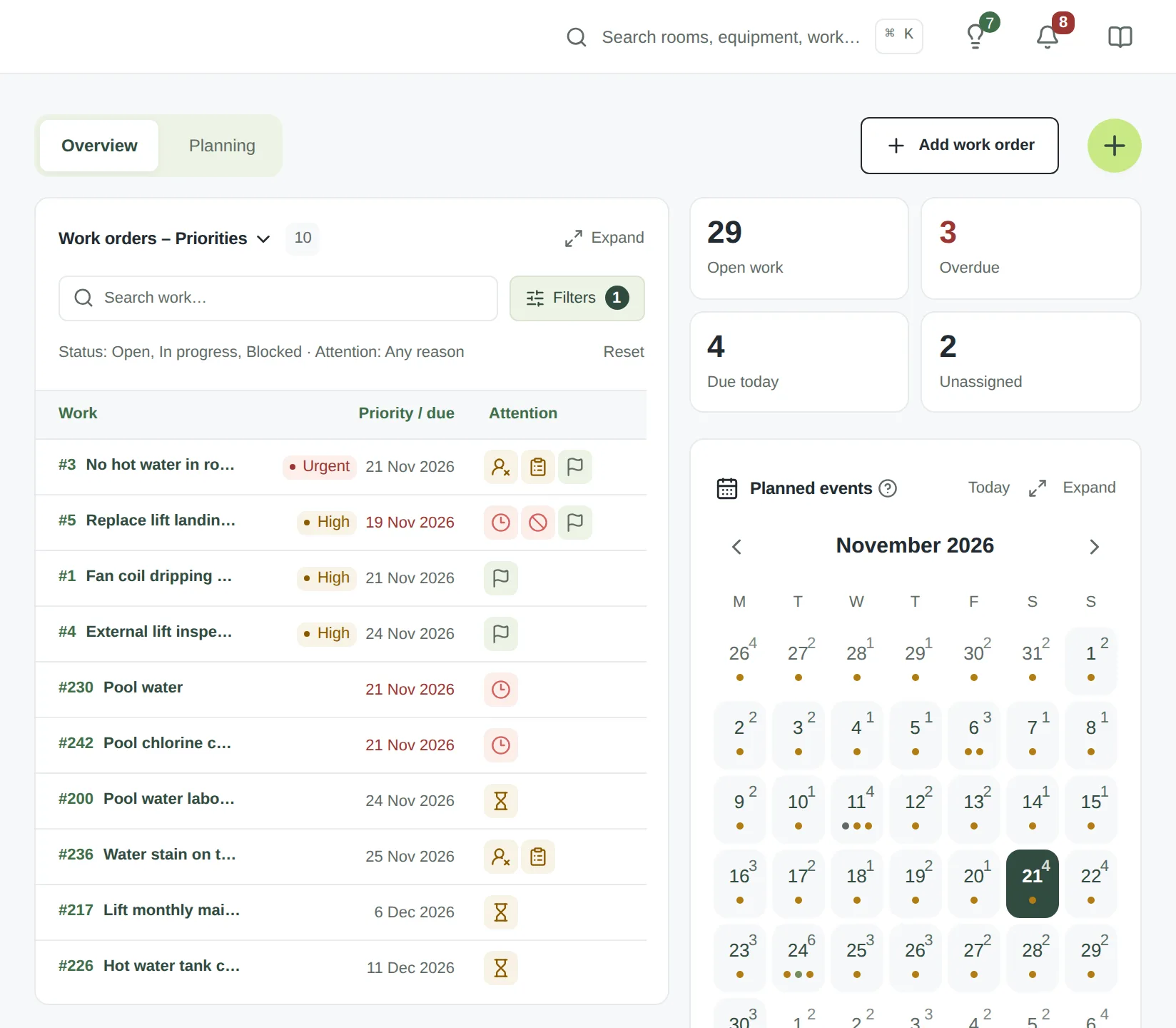
- The tiles beside the list, Open work, Overdue, Due today and Unassigned (work nobody is responsible for: no person, group or company), are filters with a name of their own: choosing one shows it in the list under its name. Their criteria are fixed. The number on Work in the menu is the same as Open work.
- Changing any filter makes it a Custom filter, until it matches a named or saved filter again.
- Filters opens every filter at once, beside the list (the whole screen on a phone): Status, Attention, Assigned to (including Me and My groups), Priority, Work type, Performed by, Location, Equipment and Due. Tap a value to choose it and again to remove it; with several values chosen in one filter, work with any of them is listed. Each value shows how many work orders it would list with your other filters. A filter with many values, such as Location, has its own search, and the values already chosen come first. The list follows as you go, and Show closes the filters. A line under the search says what is chosen: tap it to change it.
- The page's address holds the filters: reloading the page or going back shows the same list, and a link to it sent to a colleague opens it with the same filters. The assistant's answers about work link to the list they describe.
- Attention lists why work needs attention: Assigned to me, Unassigned, Overdue, Idle, Blocked, Awaiting review and High priority. Work with any of the chosen reasons is listed; all of them read Any reason, which is Priorities.
- Due is a period from today, Today, Next 7 days or Next 30 days, or the original due date between two days.
- Search work finds a work order by number, title, location, equipment or a reading it records, such as pH.
- A reading that nobody took is listed as Missed, not as work still to do: choose Missed under Status to see them.
- Finished work shown appears when the list includes completed, cancelled or missed work. That work is listed for a period: Last 30 days unless you choose Last 3 days, Last 60 days, Last 12 months or Any time, which takes longer to load. Work still to do is always listed, however old. The period is kept in a saved filter.
- Tap the list's title to choose another filter: Priorities and the tiles' filters come first, then your saved ones. Save filter keeps the current filters under a name, such as "My tasks"; saving under a name you already use replaces that filter. Saved filters are yours only.
- Default makes the chosen saved filter the one the list opens with, on any device. The title's menu marks it with a star. Select Default again to stop, or Delete to remove the saved filter. Reset clears every filter, the default's too, until you next open the list.
- Expand shows the full list across the page; Collapse returns to the list beside the calendar.
The calendar beside the list shows due dates, booked visits and contract dates by month. Within a day, one-off events come first, then recurring ones from the least frequent to the most: a yearly inspection before a daily check. The list's filters do not apply to it: it shows all of the hotel's planned events. Expand gives the month the whole page, with each day's events written out.
Add a work order
- Choose Add work order, or + then Work order.
- Optionally, start with Take photo, Choose files or Dictate and say what is to be done, where, by whom and by when. FixInn fills in what it can, each field marked until you change it. See AI features.
- Write the title, which is all a work order needs.
- Add Instructions if useful.
- Check the Due date, today at 17:00 unless you change it, always in the hotel's time, and the Priority.
- In Equipment or location, choose what the work is about, if anything: a piece of equipment or a location. Type to search; equipment comes first, with its location after its name in grey, since many pieces of equipment share a name. Choosing equipment brings its location with it, so you never pick both.
- Choose who it is Assigned to: people and groups of the hotel, and the company doing it from Companies & people. Choosing a company sets Performed by to External company, and removing it back to Own staff; you can still change it. With a company you can also add the person at the hotel who follows it up.
- The Work type is Corrective unless you choose Preventive or Inspection. Tick Affects guests when guests are affected, and pick a Checklist template if one applies.
- Attach a document with Add document if useful, then choose Add work order.
The new work order opens in the form's place, ready for anything more, such as sending a company its link. Back, or its ×, closes it.
Each work order gets a number, such as #42, that is unique in the hotel and never reused. A reading is a work order too, of type Reading, so a number names one thing in the hotel. A reading opens in its own window to record its value; see Readings.
Multi-item tasks: the same work on several locations or equipment
Sometimes the same job has to be done in many places: check every room on a floor, or service every fan coil. One work order can list them all, and each one is done and recorded on its own.
- In Add work order, tick Multi-item task, beside Equipment or location.
- Choose several locations, or several pieces of equipment; never both in one work order. After the first choice the field offers only that kind. A floor stands for all its locations and an equipment group for all its equipment, as they are at that moment: the list is fixed when the work order is added.
- Fill in the rest as usual. The people, the due date and the checklist are for the whole work order.
With the box unticked, or with only one thing chosen, the work order is an ordinary one.
In the work list it is one line with a count, such as 12/20: twelve of twenty are done or skipped. Open it to see what it covers, floor by floor:
- With no checklist, tick a location or a piece of equipment to record it as done. FixInn notes who did it and when.
- With a checklist, or for an inspection, tap its name to open it, then answer and complete it as you would any work order. You come back to the same place in the list.
- Choose Skip when one cannot be done, such as an occupied room, and give the reason.
- To do one again, open it and choose Reopen.
A maintenance plan can create such a work order on every due date.
Nobody completes the work order itself: it is In progress from the first one and Completed when every one is done or skipped. A manager can still cancel it. What was done stays done, and nothing is recorded as done because the work order was cancelled.
Each one is a record of its own, with its answers, photos and comments. A checklist step that fails opens repair work on that location or piece of equipment, and the work shows in that location's or equipment's own history. The people assigned, the costs and a link for an external company belong to the whole work order; one link covers everything it lists.
Lists, counts, Planning, the calendar and Insights show the work order once, never each location or piece of equipment.
Review reported issues
A reported issue arrives as an unassigned work order that is awaiting review. Open it and assign it to someone, a person, a group or a company: that is the review. Check its location, equipment, due date and priority while you are there. If it duplicates another order, cancel it with a note. The report as it was made, with its photos, opens its Activity & history.
An issue that the person reporting it had already fixed skips review: it is saved as their work and completed. You find it with the completed work.
Update a work order
Open a work order to see and update it. Its status comes first, under the title, then the description, saying what to do, then its checklist, if it has one, which Collapse checklist folds away; then the equipment or location, who it is assigned to, the dates, the costs, the links for a company, and the photos and files. A detail with nothing recorded yet, such as when the work started, shows only to whoever can set it there. Ask the assistant opens a new chat with this work order already tagged. See Assistant.
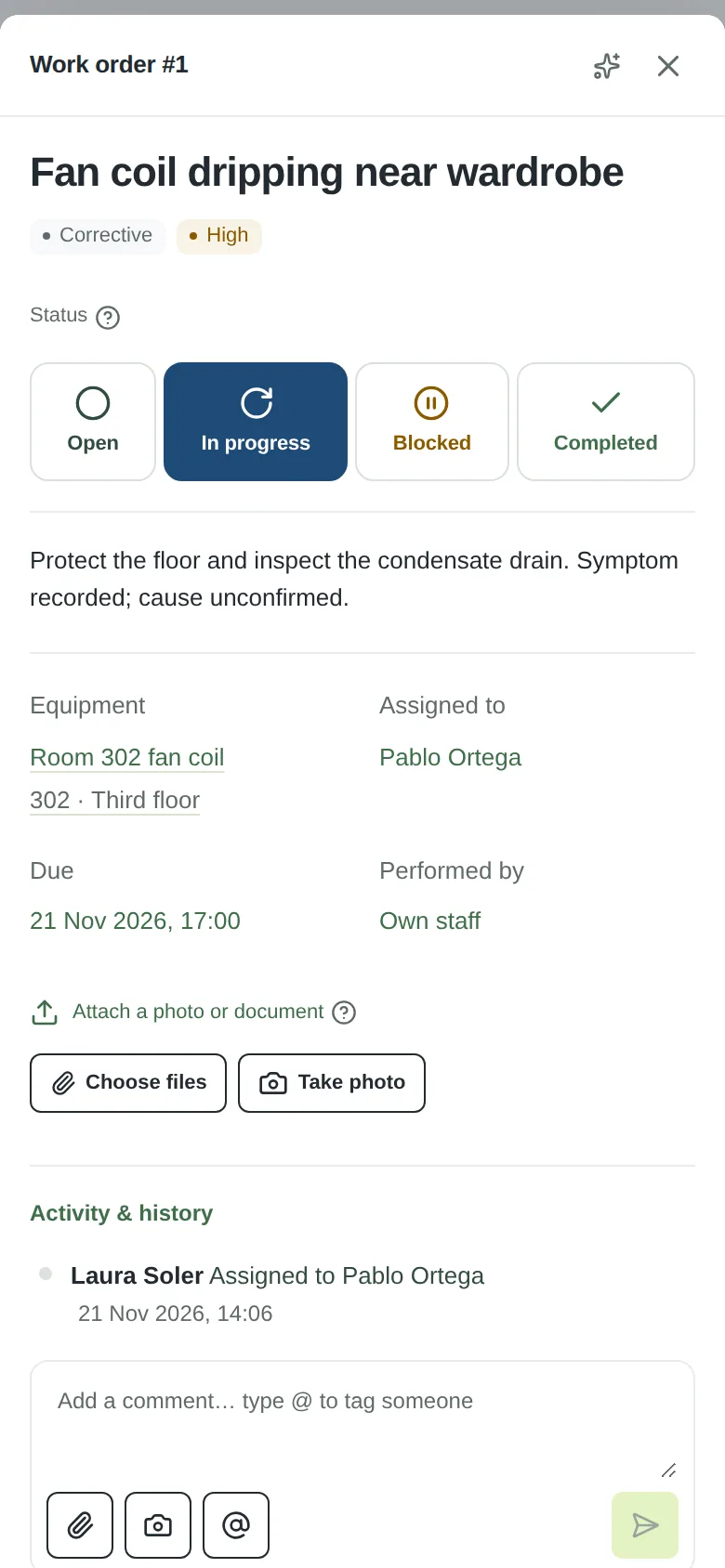
- Status: tap Open, In progress, Blocked, Completed or Cancelled; on finished work, Reopen. The change applies at once with any files you added: the status shows straight away, faded with a dashed border until FixInn confirms the save, and goes back with the reason if the save is refused. Who cannot change the status sees it in the same place. Notes go in Activity & history.
- Assigned to: a manager assigns in this box, among the details. The names chosen sit inside it, each with its own × to remove it; tap the box to search people, groups and companies. If the person has no FixInn account, type their name and use Use name only. FixInn then records the name, but nobody is notified, and the box says so. Work assigned to nobody shows an empty box.
- Appointment: Schedule appointment, among the details; see Due date and appointment.
- Recorded costs & downtime, folded under the details: labour, parts, external service and hours out of service. A box stays empty until someone fills it in, and each figure is saved when you leave its box. Type 0 for work that cost nothing; empty a box to take its figure away. Work a contract covers is paid by the contract's fee: leave its costs empty and record only what was paid on top.
- Choose files or Take photo, or drop a file on Attach a photo or document: the file waits below them, where you can crop and draw on a photo or remove it with its ×. It is saved on the work order with your next status change, or when you leave the work order. Photos show as pictures; tap one to open it.
- The title, type, priority, due date, execution, guest impact and description: a manager changes them where they are shown. Each change saves by itself, a choice at once and typed text when you leave the field or press Escape. There is no Save button.
- Equipment or location: the piece of equipment or the location the work is about. Work on equipment is where the equipment is, so its location follows its name, in grey, and is not chosen. A manager changes it while the work is not a plan's and nothing has been recorded on it. If a report was made in one room and the work is then put on equipment somewhere else, the room is kept beside who reported it.
- A checklist is answered on the work order, step by step. Each answer is saved as you give it, so you can close the work order and carry on later, and everyone on it sees the answers so far. Complete work, at the end of the checklist with Performed on, records them, and so does Completed. When the plan's next due date is chosen at completion, Completed takes you to Next due date instead.
A work order with required checklist answers or evidence cannot be completed until they are filled in: FixInn names them and marks the first. With optional steps unanswered, it asks first, for example "Complete work with 2 steps unanswered?"; Cancel takes you back to the first one. A work link and Record inspection ask the same. A plan's work can be started and completed before its due date unless the plan says no (Plans); then In progress, Completed, Complete work and Record inspection stay greyed out until the due date, and tapping one says the date, for example "Cannot be started before 26 Nov 2026."
Send a link to an external company
An external company does not need an account to record a job. On work with External company under Performed by, use Links for the company, right under the work order's details:
- Choose Send links.
- Pick the person under From the Directory, which lists this hotel's outside people by company, the company the work is assigned to first; or type their Name, Company and Email. To send to more people, choose Add another person, up to 10.
- Set Valid for (days), up to 30, and choose Send links.
- FixInn emails each person with an email address their own link, in English and Spanish, and replies come to you. Under each name you see whether the email was sent.
- For someone without an email address, or if an email could not be sent, use Copy or Share and send the link yourself, for example by WhatsApp. Each link is shown only this once.
A link needs to know where the work is. Until the work has its Equipment or location, Send links is unavailable and that field is marked as needed, with a star and a red outline: choose it, and Send links is available at once. Work waiting for a group to take it has no link either: assign it to a person, or unassign it.
Each person gets their own personal link, so the history shows who recorded the work. Anyone who has it can act in that person's name, so the email asks them not to forward it.
Whoever opens the link sees this work order, its documents and the hotel contact, and nothing else. They can add photos and comments, and record the work with the date it was done. Required checklist answers and inspection reports are still required. When they finish, the work is completed and you get a notification. You can reopen or correct it as usual. Their name appears in Activity & history with via link.
Revoke stops one person's link at once; the others keep working. Sending a new link to someone who already has one replaces theirs, and their previous link stops working. After the work is completed, the links only show what was recorded.
Due date and appointment
Due is when the work must be done. The Appointment is when someone plans to attend. Both are among the work order's details. Use Schedule appointment to record a visit, Change appointment to move it and Remove appointment to cancel it. An appointment never moves the due date or records that work started.
For example, a company must fix a lift by 20 March, the due date. It books a visit for 18 March, then moves it to 19 March. The due date stays 20 March, and a visit on 21 March would be late.
Comments and history
Activity & history shows every change and comment in order, each change in your language; what people wrote stays as they wrote it. Write a comment and type @ to mention a person or group; they get an in-app notification. A mention does not give anyone access to the work order.