Notifications
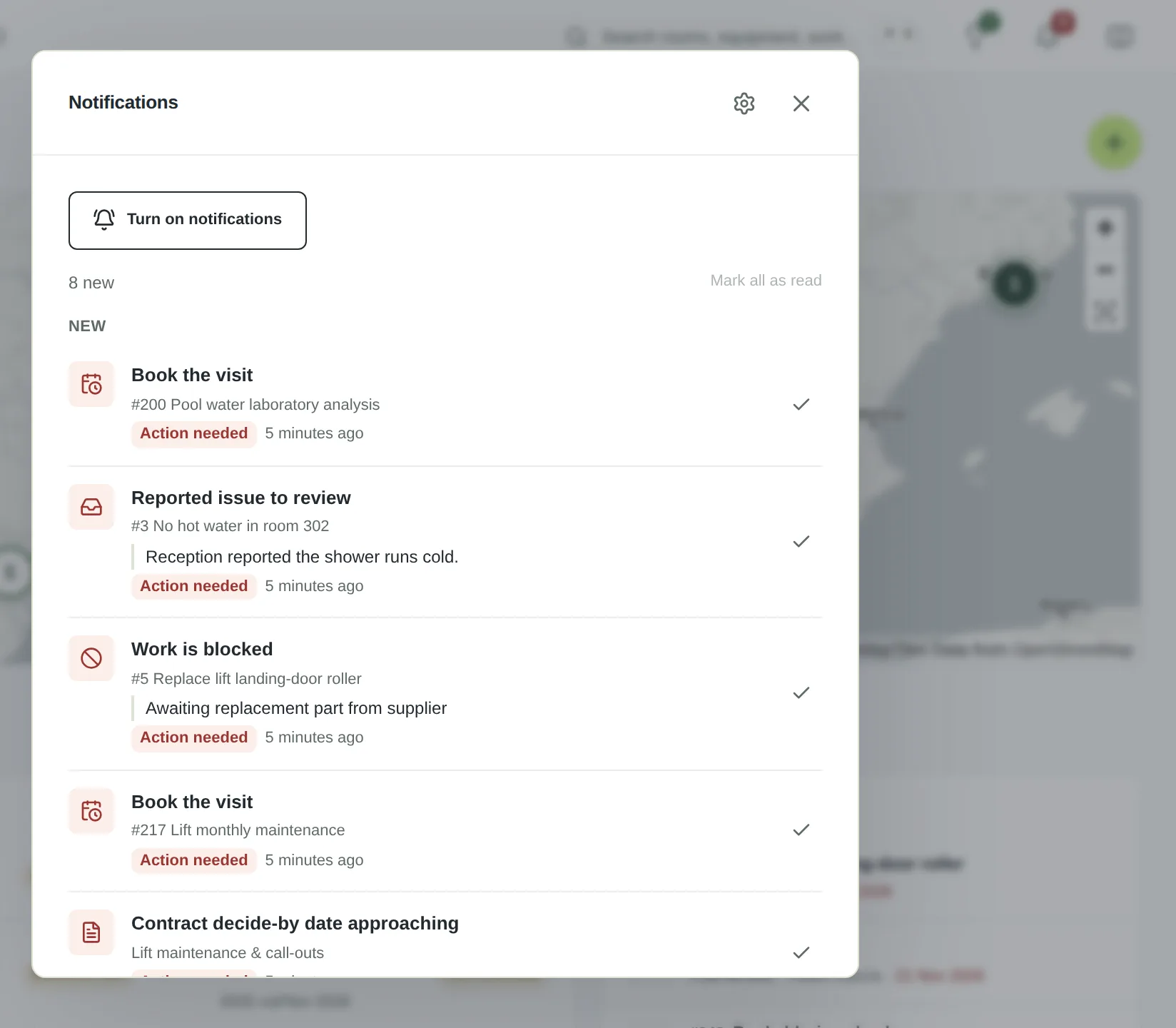
The bell at the top tells you about things that concern you: work given to you, a comment on your work, a report you sent, or something a manager has to decide. The number on the bell counts what is new in the hotel you are working in. The bell always shows every notification; you can also have a copy of some types sent to the phone app (see Phone) or emailed to you (see Emails).
Two kinds of notification
- Updates tell you that something happened, such as a new comment or completed work. Opening one, or its tick (Mark as read), marks it read. Mark all as read marks every update read at once.
- Items marked Action needed wait for someone to act, such as a reported issue to review or a visit to book. They clear on their own once the work is handled, by you or by someone else. An assignment also clears when you start the work. Once you have seen one, open it or use its tick to mark it read, for example to accept new work without opening it. Mark all as read never reads them, so nothing that waits on you is cleared unseen.
Whatever you read leaves New and no longer counts on the bell. A read item whose work still waits shows Still open under Earlier (last 30 days) until it is handled. If the same thing needs action again later, such as work blocked a second time, you get a new notification.
Nobody is notified about their own changes. Each comment and each mention is a notification of its own, even while you have not read the one before.
What a notification shows
Each notification says who did what, such as "Marta Torres mentioned you" or "Inés Carrasco assigned you work"; something nobody did as such, like a missed check, says only what happened. Under it is what it is about: the work order with its number ("#41 Room 302 fan coil noisy"), the plan or the contract. Then come the words behind it, in up to two lines: the comment as it was written, the work order's description, why work is blocked, what was reported, or the note on your resolved or dismissed report.
The words show only if you may open the work order, plan or contract: a mention on work you cannot open shows who mentioned you and nothing of the work or the comment.
What sends a notification
| What happened | Who is told |
|---|---|
| Work is assigned to you or to a group you are in | The new people responsible (action needed) |
| Work you had is given to someone else | You, and whoever assigned it to you |
| Someone mentions you or your group | The people mentioned |
| A comment on work you are responsible for or reported | The people responsible and the reporter |
| Your report is accepted, dismissed or resolved | The person who reported it |
| Work you assigned is completed or blocked | The person who assigned it |
| Urgent or high-priority work, or work affecting guests | The hotel's managers |
| A reported issue is waiting for review | The hotel's managers (action needed) |
| Work is blocked | The hotel's managers (action needed) |
| A visit needs booking | The booking owner, or the hotel's managers (action needed) |
| Follow-up work, such as an inspection finding, has nobody responsible | The hotel's managers (action needed) |
| A contractor completes work or adds evidence | The hotel's managers (action needed until opened) |
| A scheduled check was missed | The hotel's managers (action needed until opened) |
| A contract's checked date to decide by is less than 30 days away | The hotel's managers (action needed) |
| Your access to a hotel changes | You |
| FixInn's staff offers someone administrator access | The organization's administrators |
Routine tasks issued from a maintenance plan do not send "assigned to you" each time. Changing who does one does.
Emails
In Settings, under Notifications, tick Email for each type you want by email. The list shows only the types your role can receive, and a tick saves at once. The settings button at the top of the bell, Notification settings, opens the same list, and so does the link at the foot of every email.
At first, emails are on for Your report accepted, dismissed or resolved, Missed check, Visit to book, contract decide-by date and Access changes.
An email goes only if the notification is still unread at the next run, every 15 minutes, and everything waiting for you then goes in one email, under the hotel's name. What you read in FixInn before that is not emailed, each notification is emailed at most once, and a notification older than a day is left to the bell. Emails go to the address you sign in with, in the language you last used in FixInn, or in English and Spanish until FixInn knows it.
In the email each notification is a block: who did what and when, by the hotel's clock; the work order, plan or contract as a link; the words behind it in full; its main facts, such as the work order's number, the place and equipment, an urgent or high priority, whether it affects guests, the due date and who it is assigned to; and a button that opens what the bell would open. Recent activity follows where it helps you decide: the two comments before a comment or a mention, the original report of work given to you, other open work in the same place for a reported issue or urgent work, when a missed check was last done and its reading, and the latest comments on blocked work. As in the bell, all of it only from what you may open. If the phone app is on your phone, the email's links open in it.
Phone
In the phone app, notifications can also arrive on the phone, as soon as they happen. The first time you open the app signed in, the phone asks whether FixInn may send you notifications; that is the phone's own question, asked once on each phone. If you said no, you can allow them later in the phone's settings; until then the bell's panel says so at the top (× hides that on the phone). Where the phone has not been asked yet, the panel shows Turn on notifications instead.
Once a phone is registered, Settings shows a Phone column beside Email: tick Phone for each type you want on your phone. At first it is on for Work given to you or taken from you, Mentions, Urgent, high-priority or guest-affecting work, Waiting on a manager and Missed check. The ticks are yours, not the phone's: they apply to every phone you use the app on.
A phone notification puts the work order first, in the language you last used in FixInn: its title is the work order with its number, the plan or the contract, and its text says who did what with the words or the facts that matter, such as "Marta Torres: the guest checks out at 12:00…" or "Inés Carrasco assigned it to you · Due today · High priority". If you may not open what it is about, it shows only the bell's sentence. If you work in several hotels, the hotel's name is under the title on an iPhone and on the second line on Android. On an iPhone, notifications about the same work order stack together. Whether the words show on a locked iPhone depends on the phone's own Show Previews setting.
Tapping it opens the app at what the bell would open. If you were signed out, sign in and it opens then. Each notification reaches your phone at most once, and every comment and every mention is one. The phone is told only of what happens: what was already waiting when you joined a hotel is in the bell, not on your phone.
Signing out on a phone stops its notifications; Sign out on all devices stops them on every phone.
Browser
A browser can show notifications too, on your computer's screen even when FixInn's tab is closed (the browser itself has to be running). Press Turn on notifications at the top of the bell's panel, or in Settings, under Notifications, turn on Notifications in this browser; the browser then asks whether FixInn may send you notifications, once. The button shows only until you have answered in that browser, and not after you turn notifications off there in Settings. If you said no, allow them again in the browser's site settings: the bell's panel says so until you hide it with ×, and Settings says so too. The phone app has its own (see Phone), so the switch is not shown there, and Safari on an iPhone does not offer it.
Once a browser is on, Settings shows a Browser column: tick Browser for each type you want in the browser. It starts with the same ticks as Phone, and the two are separate, so you can have reports to review on your computer and only urgent work on your phone. Like the other ticks, they are yours and apply to every browser you turned on.
A browser notification says what a phone notification says, with the hotel's name on the second line if you work in several hotels. Clicking it opens what the bell would open, in the FixInn page you have open or in a new one. A page that is open when a notification arrives brings itself up to date.
To check a phone or a browser, press Send a test notification in Settings, under Notifications: a test reaches every phone and browser where your notifications are on. If nothing appears, look at that device's own notification settings, such as Do Not Disturb or notifications turned off for the browser.
The switch belongs to you and that browser: on a shared computer, a browser gets only the notifications of the person who turned them on there. Turning the switch off, signing out, or Sign out on all devices stops them.
New, earlier and previous
- New lists what you have not dealt with yet, newest first.
- Earlier (last 30 days) is closed at first; open it to see what you already read or what was handled.
- Previous notifications loads anything older, a page at a time.
A notification never gives access to work. If you can no longer open the work, the notification says so instead of showing its title and its words.
If you work in several hotels, Also new in lists the other hotels with something new; choose one to switch to it.
Needs attention
Managers also have the lightbulb, Needs attention. It lists what needs attention in the hotel as a whole rather than in your own notifications: overdue work, plans with checks missed since they were last done, contracts whose decide-by date is to check, coming up or passed (worded as on Home), and Recommendations for gaps in the saved records. Each row opens its work order or contract; the plans row opens the plan when only one has missed checks, else Plans. See Recommendations for everything it can suggest. The number on the lightbulb counts overdue work, plans with missed checks, contract dates and the recommendations that are new to you.