Maintenance plans
A maintenance plan repeats a job on a schedule, such as a monthly filter clean or a daily pool check. FixInn turns each due date into work for the responsible person.
Open Maintenance plans. It has three tabs: Maintenance plans, Procedure library and Typical maintenance. See Procedures for the second tab, and Typical maintenance below for the third.
An example
The fan coil in Room 316 needs a service every month. Instead of adding twelve work orders, you add one plan:
Fan coil service, Room 316
- Equipment
- Fan coil, Room 316
- Plan type
- Maintenance
- Frequency
- Monthly
- First due date
- 1 March
- Next due dates
- 1 March, 1 April, 1 May
- Responsible
- Mike
- Performed by
- Own staff
- Procedure
- Monthly fan coil service
Mike sees each visit coming, with the steps of the procedure. If nobody does April's visit, April stays missed in Check history, and May's visit is still due on 1 May.
When it helps: use a plan for anything that repeats on a schedule. For a visit by an outside company, such as a yearly boiler service, also tick Requires booking, so the plan warns you until the visit is booked.
The plan list
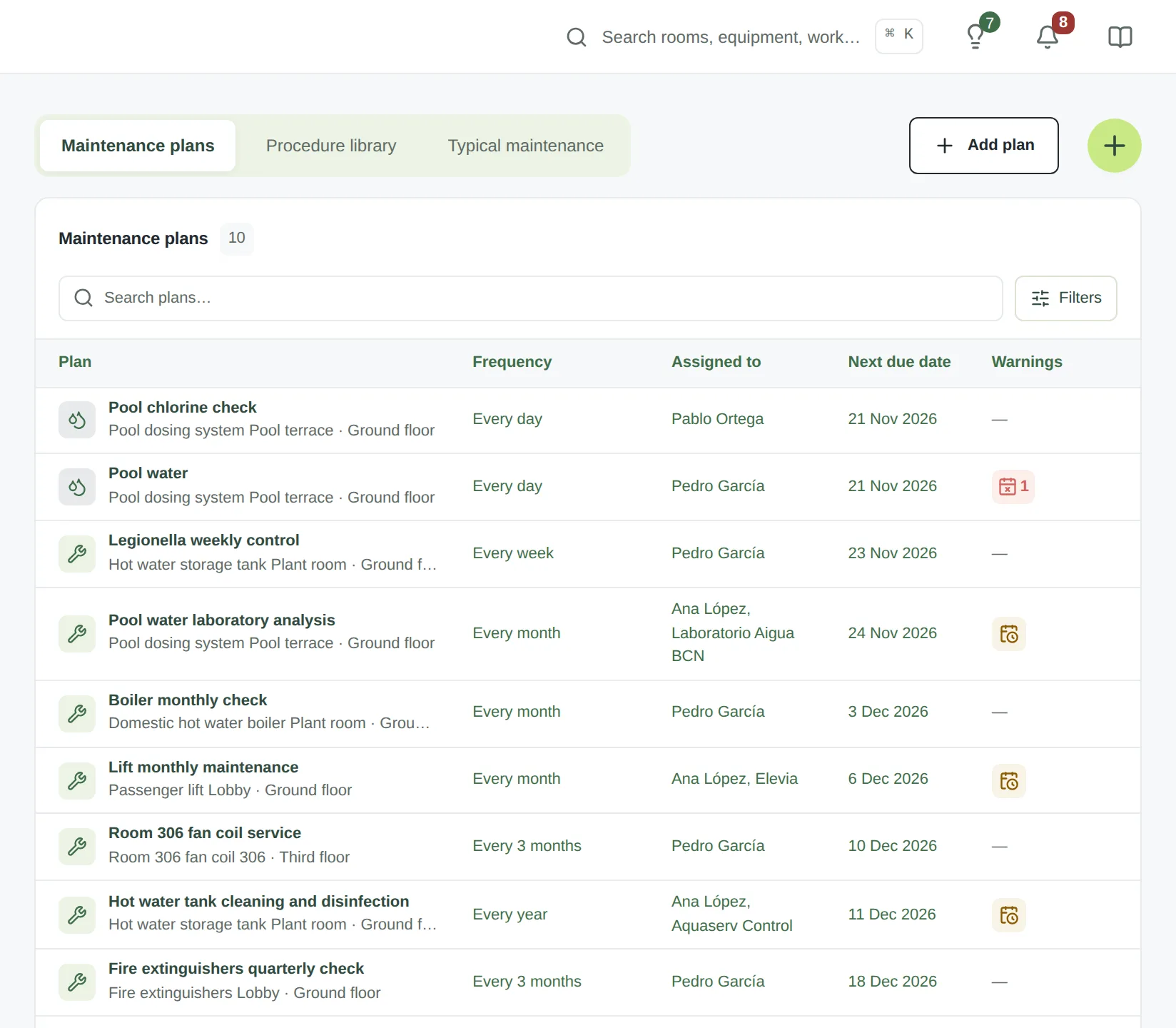
Each row shows the plan with its equipment, the frequency, who it is assigned to, the next due date and warning icons. The icons flag checks missed since the check was last done, visits that need booking, pauses and plans with nobody responsible. Use Filters and search to narrow the list. The list's title, Maintenance plans, saves filters and chooses a default one, as in the work list.
Add a plan
- Choose Add plan.
- Enter the Plan name.
- Choose the Plan type: Maintenance, Inspection or Reading. An inspection records a result and needs its report; see Inspections. In Equipment or location, choose the equipment. A reading can also be on a location with no equipment. It takes one or more readings, each with a unit and, if you want, a minimum or a maximum. See Readings.
- Choose the Frequency, from Daily to Every 2 years, or a Custom interval. Advanced schedule adds weekdays, seasons, the due date time and whether work may be done before the due date. It opens by itself when one of its options is set.
- Set the First due date. Next due dates previews the next dates.
- For maintenance or an inspection, Allow work before the due date, in Advanced schedule, is ticked: the work can be started and completed as soon as its work order exists. Untick it when the work must be done on its due date or later. You can change it later on the plan.
- Tick Requires booking if an outside company must be booked for each visit.
- Choose who is Responsible and who it is Performed by: Own staff, or one of the hotel's companies, listed under External company.
- For maintenance or an inspection, pick a published procedure, choose Add procedure… to write one without leaving the plan, or write your own instructions. Your own instructions belong to this plan alone; see Procedures. A reading plan has no procedure: its readings are the whole definition.
- Choose Add plan. The new plan opens in the form's place; Back, or its ×, closes it. A plan added from a piece of equipment closes back to that equipment.
By default, a maintenance or inspection check is due at the end of its day, and a reading at 10:00, in the hotel's time zone; Due time, under Advanced schedule, changes it. FixInn creates each date's work order at least 7 days before it is due, so the coming week can be planned and reassigned, and never more than 14: for a daily or weekly plan, 7 days before; every 2 weeks, 13; monthly or longer, 14. A visit to book is created by its reminder days. Work orders in advance (days), under Advanced schedule, sets another number, fewer than 7 too; left empty, it shows the plan's own.
Multi-item tasks: the same work on several locations or equipment
A plan can cover many things at once: every guest room, a floor, or every fan coil of a group. It works like a work order on several: each due date is one work order that lists them, and each one is done and recorded on its own.
- In Add plan, tick Multi-item task, beside Equipment or location.
- Choose several pieces of equipment, or several locations; never both in one plan. An equipment group, a floor or All rooms is one choice that stands for whatever belongs to it on the day each work order is created: a fan coil added to the group joins the next one, and retired equipment or a location no longer in use drops out.
- Fill in the rest as usual. The dates follow the calendar (Keep calendar dates). A plan on locations is a checklist answered by the hotel's own staff, so it asks for a Published procedure.
With the box unticked, or with only one thing chosen, the plan is an ordinary one. A reading plan is always about one thing.
Each due date creates one work order, a round, that lists everything the plan covers that day. People work through it as through any work order on several: they tick, open or Skip each one, on as many days as it takes. The round completes itself when none is left.
When its period ends, which by default is when the next date is due, each location or piece of equipment that was neither done nor skipped becomes missed, on its own. The others keep what was recorded for them, and nothing is marked as done because the period ended. One that somebody had already started stays open until it is finished. A missed one can still be recorded later: it stays missed, with who did it and when.
- In the plan list, the plan says what it covers, and its warning counts the locations or equipment missed since the plan was last done.
- Check history shows each round with its count, such as "6 done · 1 skipped · 2 missed", and opens its work order.
- Edit equipment or location, on the plan, changes what it covers. Rounds already created keep their list.
- A location's or a piece of equipment's own page shows its own part of each round: done, missed or still to do. Its Next maintenance is the round in which it is still to do, or else the plan's next date.
- The logbook prints a line for each location or piece of equipment of each round.
- Retiring equipment, or taking a location out of use, skips its part of the rounds still open, unless someone had started it.
When the next date depends on the result
Some visits have no fixed cadence: a lift inspection may be due in two years after a favourable result and in six months after a conditional one. For these, open Advanced schedule and set Calculate the next due date to Choose it when the work is done. The interval becomes a Suggested interval.
When someone completes the visit, the form asks for the Next due date. It is filled in with the suggestion, and they change it to what the report says. That date becomes the plan's next due date. Until it is done, the visit stays open instead of becoming missed.
To change the date later, use Change the future schedule on the plan and set the new first due date.
The other choices are Keep calendar dates, where early or late work does not move the cycle, and Count from actual work, where the interval starts on the day the work was performed.
With Count from actual work or Choose it when the work is done, a skipped visit counts as done on its due date for the next one: the interval, or the Suggested interval, starts there.
Open a plan
Choose a plan to see its schedule and history. Ask the assistant opens a new chat with this plan already tagged. See Assistant.
- Procedure, on maintenance or an inspection, names the procedure the plan follows, or Own instructions. Open shows it in the Procedure library.
- Performed by, on maintenance or an inspection, says whether the hotel's Own staff or a company does the work.
- Allow work before the due date, on maintenance or an inspection, is a box a manager ticks or unticks at once; it saves itself. It applies to the plan's work orders already created too. Unticked, a work order's In progress, Completed and Complete work stay greyed out until its due date; tapped, they say the date.
- Readings, on a reading plan, has a card for each reading with its latest value and a small trend. A card opens that reading's full history.
- Book one date, on a plan that requires booking, books the visit for one due date. The due date stays the same.
- Check history lists every due date with its status, reading, performer and actual time. Choose a date to open its work order; a reading's opens in its own window to record the value.
- Edit readings, on a reading plan, changes what it measures and its limits from today, and adds or removes readings. See Readings.
- Change the future schedule changes the schedule from a date you choose. Work already issued keeps its original dates.
- Change who does it changes the person or group responsible and Performed by from a date you choose, with a reason. See Change or retire a plan.
- Pause or resume this plan stops new work for a period, such as a winter closure, and records a reason.
- Skip, on a due or missed date in Check history, records with a reason that the check was deliberately not done, so it no longer counts as missed. Setting a date's work order to Cancelled skips that date too, with your note if you add one. Reopen undoes a skip. Neither completes the plan or moves its calendar.
Change or retire a plan
A manager changes a plan on its own page. The name, the Plan type (Maintenance or Inspection) and the Procedure save themselves when you change them, as on a work order.
A change applies from today. A plan creates its work orders up to two weeks before they are due, and a change reaches those that nobody has touched yet. When there are some, the change waits for Save and first lists them:
- Changes: the work orders that take the change.
- Stays as it is: those that keep what they had: In progress, because someone started them, or Booked. Checks already done or missed never change.
Cancel leaves the plan as it was.
- Equipment or location can be corrected only while the plan has no history: no check due before today, and none done, started or booked. After that its ⓘ says why it stays. To do the same work somewhere else, add a new plan.
- A reading plan stays a reading plan. Its readings change in Edit readings.
- Change who does it changes, from a date you choose and with a reason, the person or group responsible and Performed by: Own staff or a company. Before you save, it lists what changes and what stays as it is. A work order that someone else holds stays with them.
- Change the future schedule lists the same way what stays as it is and, with Replace eligible future work whose dates disappear from this schedule ticked, what Gets cancelled.
- More, then Retire plan, stops the plan for good from today. It lists the work orders that get cancelled and those that stay to be finished, and takes an optional Note. The plan keeps its history and its logbook, and the plan list shows it as Inactive. To start again, add a new plan.
Saving a new version of a procedure in the Procedure library reaches the plans that follow it the same way, and the procedure's form lists their work orders before Save.
Missed checks
If nobody does a check by its due date, it becomes missed. Missed checks stay in the history. Doing today's check never fills in earlier ones. See Concepts.
A missed date can't be repaired, so the warning doesn't stay forever. A plan's warning counts only the checks missed since the check was last done, and it clears by itself when the next check is done. Beyond 30 it reads "30+". There is nothing to acknowledge. Inactive and paused plans show no missed warning, because they issue no next check.
Typical maintenance
Typical maintenance is a general list of maintenance that hotels commonly do, such as reviewing the fan coils or checking the pool pH. It is the same for every hotel, so some of it may not apply to yours. It is typical practice, not a legal requirement, and the manufacturer's instructions come first. For a plan built from the rules that apply to one piece of equipment, use the Legal maintenance plan skill in the Assistant.
Choose an entry to open a new chat with the assistant. It looks in your records for what the entry applies to and prepares a card for the plan, leaving empty anything it cannot work out.
- If several pieces of equipment fit, it asks which one.
- If it finds nothing, it asks whether the hotel has it, and offers to add the equipment before the plan.
Nothing is saved until you accept a card. See Assistant.