A manager's day
This quick start is for hotel and maintenance managers. It follows a typical day: review new issues, assign work, plan the week and keep an eye on what is late.
Start from Home
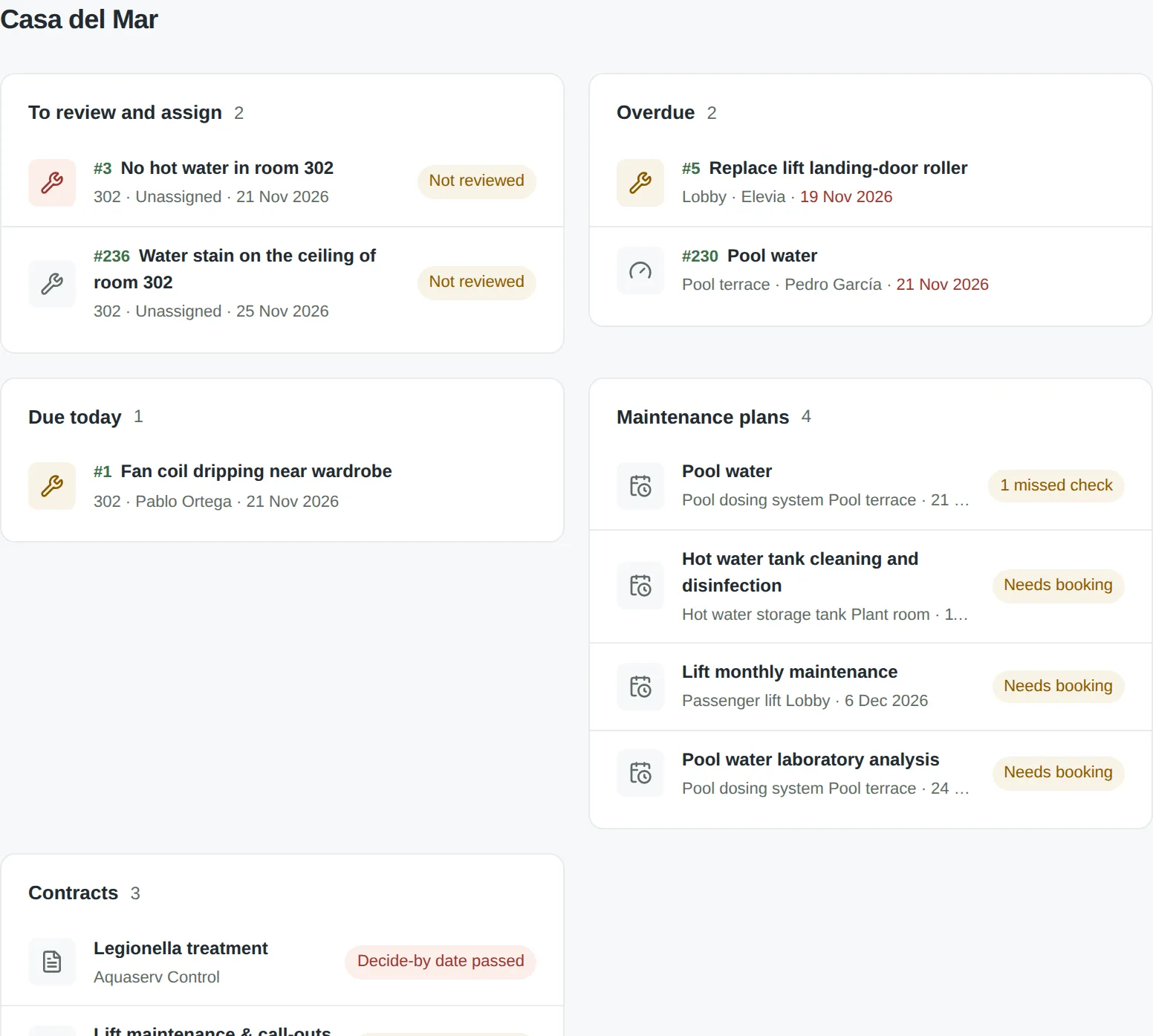
Home lists what is waiting for you at your hotel: To review and assign, Overdue, Due today, Blocked, Maintenance plans and Contracts, the most important first, and last Setup while the hotel still lacks something to be set up. Choose a row to open it. See Home.
Review new issues
When someone reports an issue, FixInn creates an unassigned work order that waits for review.
- On Home, To review and assign lists new reports, marked Not reviewed. In Work, open Filters and choose Awaiting review under Attention to see only them.
- Open a report. Its Activity & history starts with the original text, photos and who reported it.
- Assign it in Assigned to: that is the review.
- If it is a duplicate, set its status to Cancelled and add a note saying which order it duplicates.
The original report, photos and reporter stay attached to the work order whatever you change later.
Assign and follow up
- Assigned to accepts several people and groups at once. Type part of a name to find them.
- For work an outside company does, choose the company in Assigned to, give the work its Equipment or location, and send the company's people their links with Send links, under the work order's details. See Work orders.
- Tap a status under the work order's title: Open, In progress, Blocked, Completed and Cancelled, each with its own icon. A tap applies the status straight away, together with any files you added.
- Write in Activity & history to comment. Type @ to mention a person or group; they get an in-app notification.
- The bell at the top shows your notifications; the lightbulb, Needs attention, shows overdue work, missed checks, contract dates and recommendations for the hotel. You can also have some types sent to the phone app or emailed to you. See Notifications.
Plan the week
- In Work, switch to Planning.
- Choose Day, 48 hours or Week.
- Drag a task to another person or day, or between tasks to set the order. The arrows on a task, or Move task, choose its person and day.
Moving a task plans a visit. It never changes the original due date. See Planning.
Watch for missed checks and bookings
- A daily or weekly check that nobody did becomes missed. Doing today's check never marks earlier ones as done, and it clears the plan's warning. See Concepts.
- Plans that need an outside company to visit can require booking. The calendar in Work shows To do: arrange visits until you record an appointment.
Look back
Open Insights for work created and completed, open work and the plans' preventive checks. See Insights.