Companies and people
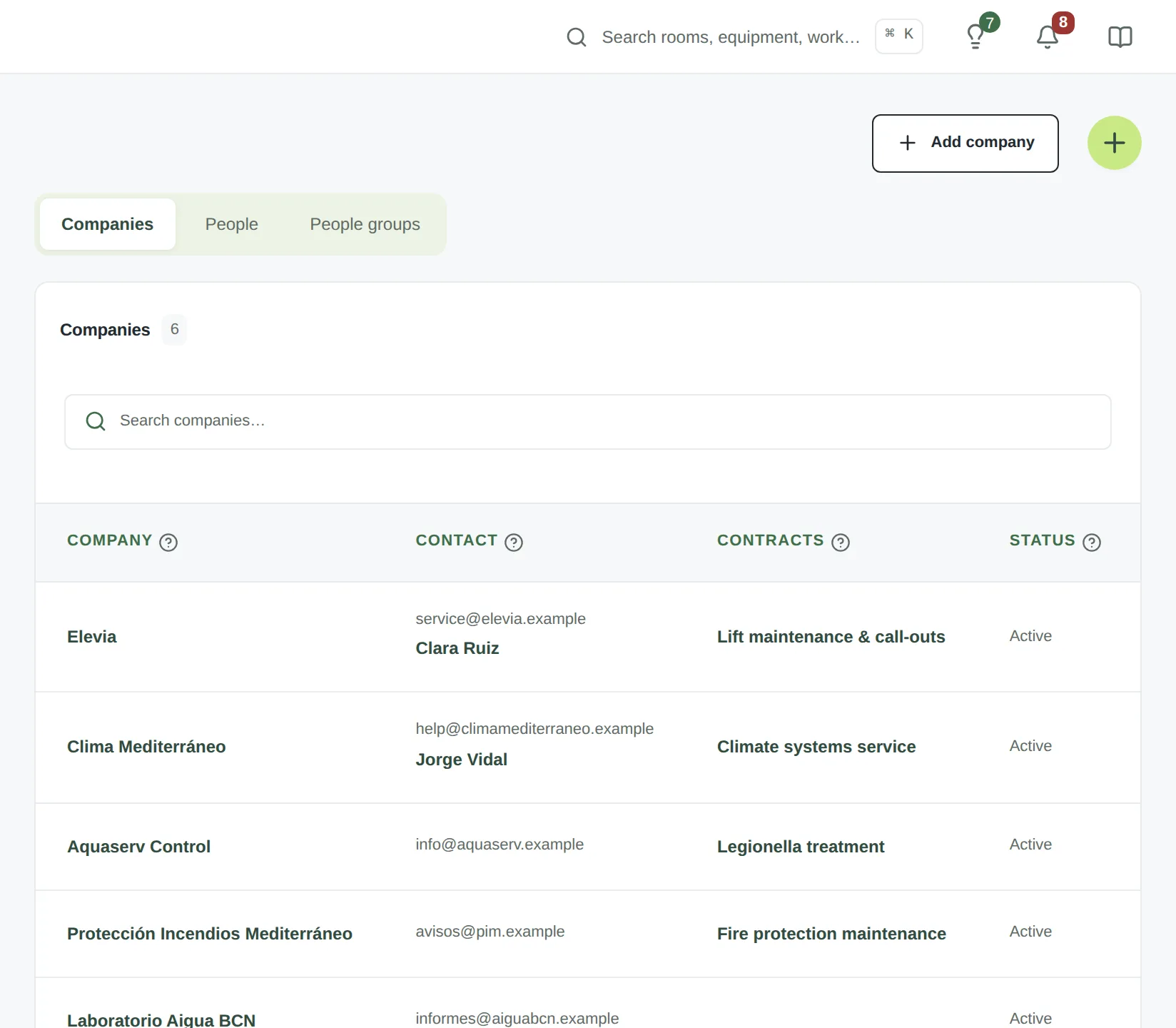
Companies & people is the hotel's address book: suppliers, maintenance companies and the people you work with. It has three tabs: Companies, People and People groups.
An example
A company, one of its people and one of your own groups:
Example Lifts
- Legal name
- Example Lifts Ltd
- Preferred name
- Example Lifts
- Hotels
- Hotel Mar
Laura Gómez
- Person type
- External
- Job title
- Lift technician
Pool maintenance
- Members
- Mike, Pedro
When it helps: link the lift contract's Provider to Example Lifts, and the company lists its contracts when you open it. Send a work order link to Laura without typing her address again. A daily pool check can go to the Pool maintenance, so that whoever is on shift takes it. None of this gives anyone access to FixInn.
Add a company
- On Companies, choose Add company.
- Enter the Legal name, and optionally a Preferred name, Tax identifier, email and phone.
- Choose the Hotels it works with. Selecting several hotels shares the same company across them.
- Choose Add company.
If a company with the same tax identifier already exists in your organization, FixInn reuses it instead of creating a duplicate.
The list shows each company's email or phone under Contact, with its people below it. Open a company to see its details. Below them, People lists the people who work for it and Contracts its contracts and warranties; choose one to open it. To change the company, choose Edit details. To stop using it, untick Active company there: its people, contracts and history stay, and it is no longer offered for new work or contracts.
Add a person
- On People, choose Add person.
- Enter the Legal name, the Person type, Internal or External, and their company, job title, email and phone.
- Optionally link them to an application member with Link to application member.
- Choose Add person.
Open a person to see their details; their company opens from there. To change them, choose Edit details. To stop using a contact, untick Active contact there; their history stays.
Adding a person creates a contact only. It does not give them access to FixInn. To give access, invite them from Settings. See Settings.
People groups
A people group is a set of people, such as "Day shift" or "Pool maintenance". You can assign work and plans to a group, and any member can take a task from it.
- On People groups, choose Add people group.
- Enter the Group name and choose its Members.
- Choose Add people group. The group opens; Back, or its ×, closes it.
One person can belong to several groups. Joining a group does not change a person's role or access.
Open a group to see its members; to change it, choose Edit details. To stop using a group, untick Active group there; its open work stays with it until you give that work to someone else. Its Membership history shows each version of the group, newest first: its name, whether it was active, its members, when it changed and who changed it.
The hotel's main contact
Contractors see the hotel's main contact on their home screen. To choose that person, open Settings, then This hotel, choose Edit hotel profile and pick an internal person in Main hotel contact, usually the hotel manager. This changes no one's access.