Planning
Planning is the second tab in Work. It shows who does what on which day, so you can balance the workload.
An example
Mike will be away on Tuesday, and three tasks are planned for him that day. A new leak has also come in with nobody assigned:
Tuesday
| Mike | Ana | Unassigned |
|---|---|---|
| Fan coil service, Room 316 | Lobby light | Leak in Room 104 |
| Pump check | ||
| Kitchen extractor filter |
Drag Mike's tasks to Ana, or to Wednesday, and drag the leak to whoever is free. Each task gets its new person and day, and its due date stays as it was, so a task moved past its due date will be late.
When it helps: use it at the start of the day or the week to see who has too much and what nobody has picked up.
The planning grid
Each column is a person, plus Unassigned, and after them each company doing open work, with its work. Work assigned to a company is not Unassigned. Each row is a day.
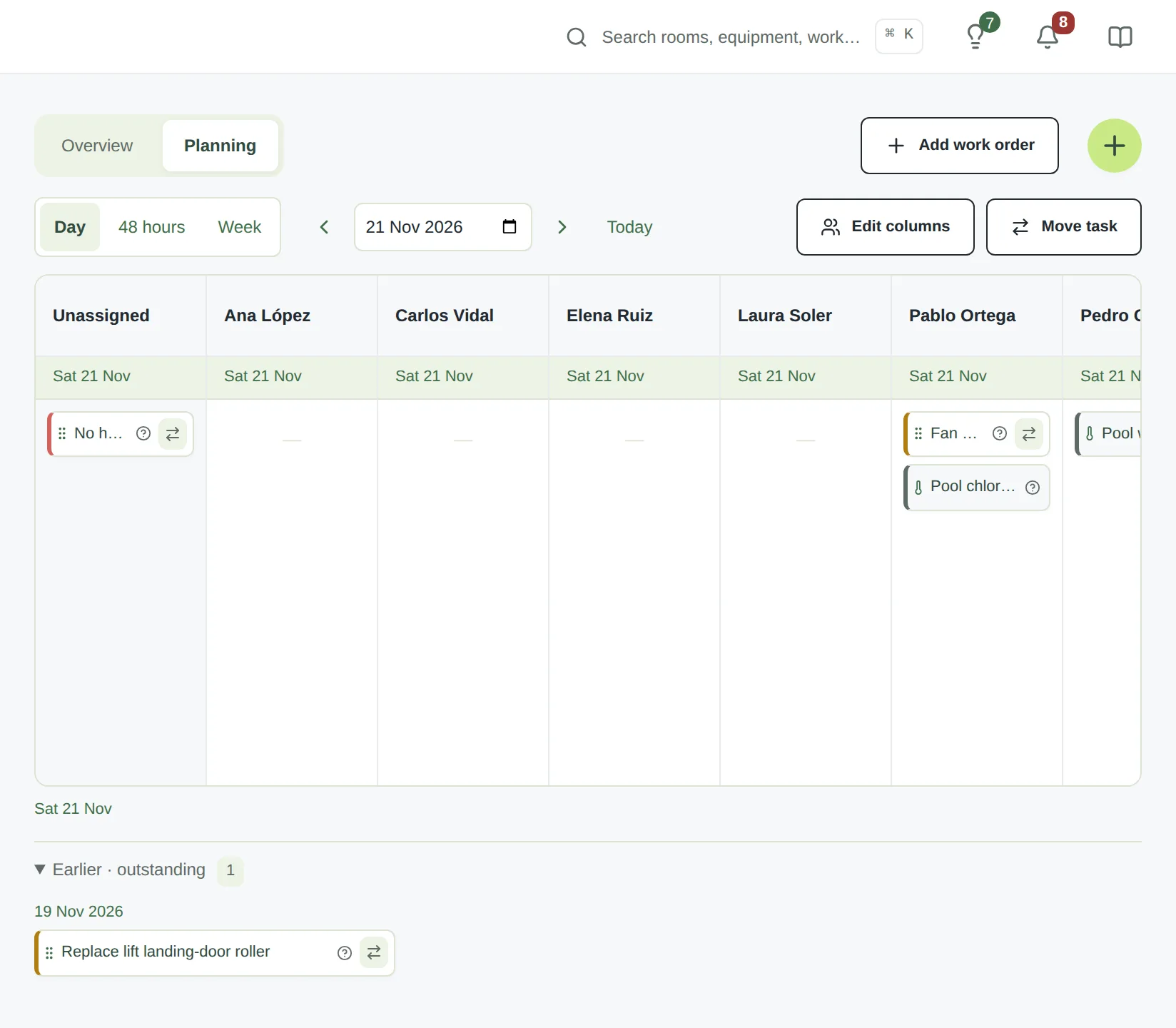
- Choose Day, 48 hours or Week to change the range.
- Choose Today to come back to the current date.
- Earlier · outstanding shows work from the last 30 days that is still open.
- Edit columns chooses your columns: drag them into the order you want, including Unassigned, remove people you do not need, and add them back from Add. Adding Others gives a column for the work of everyone not shown. Your columns are yours only and stay as you left them; Show everyone goes back to all of them.
Move and order work
- Drag a task to another person or day to plan it there.
- Drag a task between two others to set the order within a day.
- Or choose Move task, find the task by searching for it, and choose the person and the day.
Moving a task plans the visit and keeps the due date unchanged. The order you set here becomes the starting order in each person's My work. A person can still rearrange their own list afterwards.
A moved task goes to its new place straight away and looks faded, with a dashed border, until FixInn confirms the save. If the save is refused, the task goes back and FixInn tells you why. If the connection drops, the task stays faded until FixInn sends the save again when the connection returns, or until you choose Retry unconfirmed save.
The calendar
In the Overview tab of Work, the month calendar shows due dates, booked visits, readings and contract dates. Expand shows the whole month with up to five items per day; choose a day to see all its items.