Report an issue
This quick start is for reception, housekeeping and anyone else who spots maintenance issues. You do not need to know the cause. Tell maintenance what you saw and where.
Report from your phone
- On your home screen, choose Take photo to start with the camera, or Report an issue to start without a photo.
- Add up to six photos if you have them.
- Describe the issue in What's wrong?, for example "No hot water in the shower", or choose Dictate and say it.
- In Location, type part of the place's name, such as 302, and choose it from the list.
- Set the Priority if it is urgent.
- Choose Report an issue.
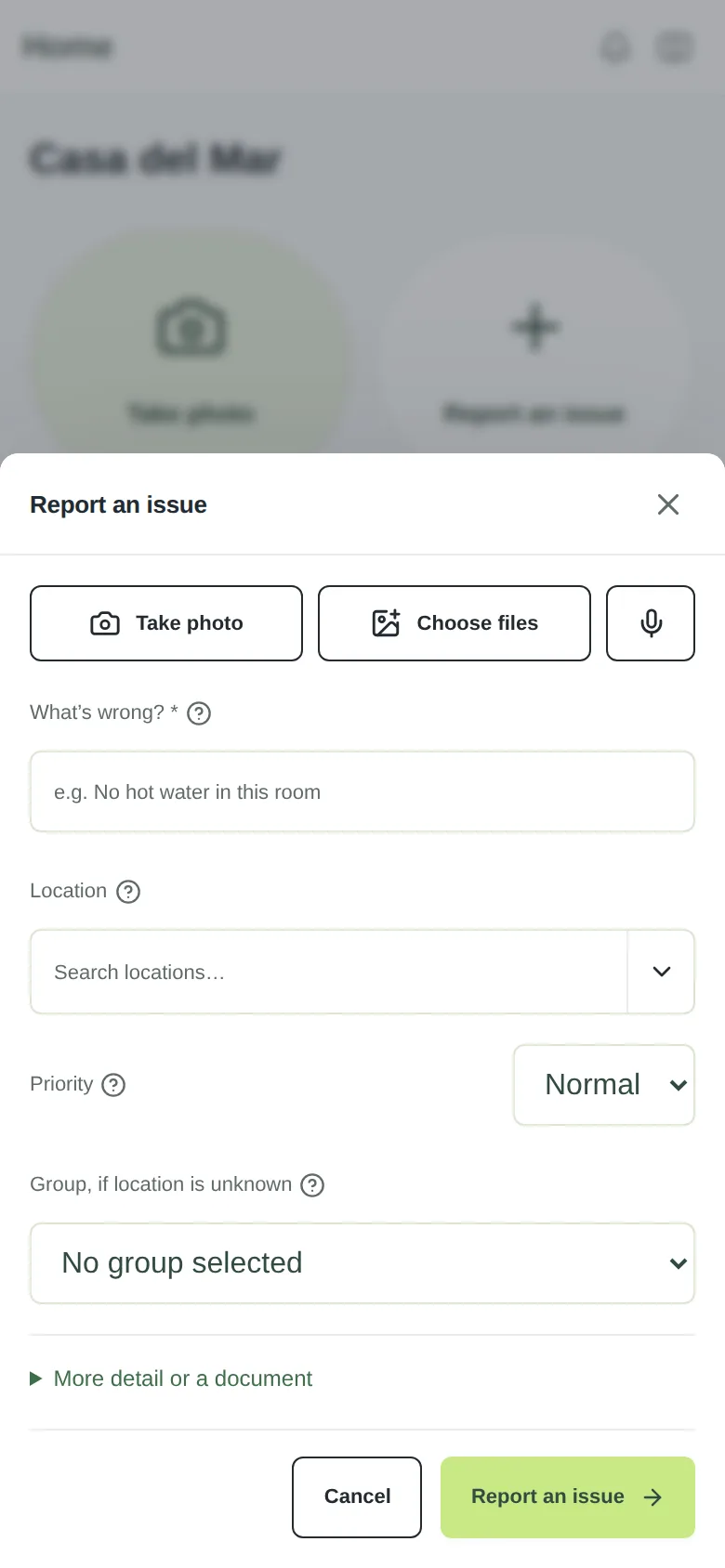
Your photos and words fill in what they can, and those fields are marked until you change them. See AI features.
Your report becomes a work order for maintenance to review. Nothing is uploaded until you send it.
Report without an account
Your hotel may have a poster with a QR code, or a link it sent you. Scan it or open it with your phone. You do not need an account.
- Choose Take photo or Choose files if you have photos.
- Describe the issue in What's wrong?, or choose Dictate and say it.
- In Location, type part of the place's name and choose it from the list.
- Set the Priority if it is urgent. Add More detail if it helps.
- Write Your name and Your email. Your phone remembers them for next time. The hotel can use the email to contact you about the report. FixInn does not send you email.
- Choose Report an issue.
FixInn shows your report's number. Report another issue starts a new one. Without an account you cannot follow your report or correct it afterwards, so tell maintenance if something changes. If the page says the link is no longer valid, ask the hotel for the current one.
Keep the link on your phone
Choose Add to Home Screen at the top of the form. On your phone the icon is called Report and opens the form at once.
- On an iPhone, follow the steps it shows: Share, then Add to Home Screen, then Add.
- On Android, choose Install in the window that opens.
- On a computer, the button is Add to bookmarks and shows the keys to press.
The icon only reports issues for that hotel. To sign in, use the FixInn app. If the hotel replaces its link, the icon stops working: open the new link and add it again.
Follow your reports
Open My reports to see everything you reported, newest first. Use Filters to show only reports Awaiting review, Open work, Completed or Cancelled. Tap a report to see its details and current status. Resolved and cancelled reports are listed for the last 30 days; change Finished work shown to see older ones.
You only see your own reports. You do not see other people's reports or the internal work of maintenance.
The bell at the top tells you when maintenance accepts, dismisses or resolves one of your reports. Choose the notification to open it in My reports. See Notifications.
Correct a report
Until maintenance reviews your report, you can open it in My reports and choose Edit my report to correct the text or add more photos. FixInn keeps your original text and every correction. After maintenance reviews, assigns or starts the work, the report becomes read-only.
Your progress
Your home shows how many reports you have created. Every report helps maintenance find issues early.