Procedures
A procedure is a reusable set of instructions and checks, such as "Monthly fan coil service". Plans and work orders use a procedure so everyone records the same things.
Open Maintenance plans, then the Procedure library tab.
An example
Fifty fan coils get the same service every month, by whoever is on shift. This procedure makes sure each one is checked and recorded the same way:
Monthly fan coil service
- General instructions
- Switch the unit off at the room panel before opening it.
- Applies to
- Ceiling fan coils in guest rooms and corridors. Not the kitchen units.
- Source records
- Manufacturer's service manual, section 6
Section: Filter and coil
| Step | Answer type | Rule |
|---|---|---|
| Wash the filter | Task | Ticked when done |
| Is the filter clean after washing? | Yes / no | Expected yes |
| Supply air temperature | Reading | In °C, from 10 to 16. Opens follow-up work if outside |
| Condition of the coil | Options | Clean, Dirty or Damaged. Damaged needs follow-up |
| Photo of the clean filter | Evidence files | At least 1 file |
Section: Drain
| Step | Answer type | Rule |
|---|---|---|
| Does the drain run freely? | Yes / no | Expected yes. Opens follow-up work if no |
| Anything else you noticed | Text | Optional |
Mike does the service in Room 316 and enters 18 °C. That is outside the range, so when the work is completed, a corrective work order opens for that fan coil.
Task or yes / no: use a task for something to do, such as "Wash the filter". Use yes / no for something to check, such as "Is there a leak?". A yes / no step can have an expected answer and open follow-up work. A task cannot: it is either done or not done.
When it helps: write a procedure when the same job is done many times or by different people, and you want the same answers each time. For a one-off job, the Instructions on the work order are enough.
The procedure list
Each row shows the procedure, its status, version, number of steps, the plans that use it and when it was updated. Use Filters to show only Published or Retired procedures.
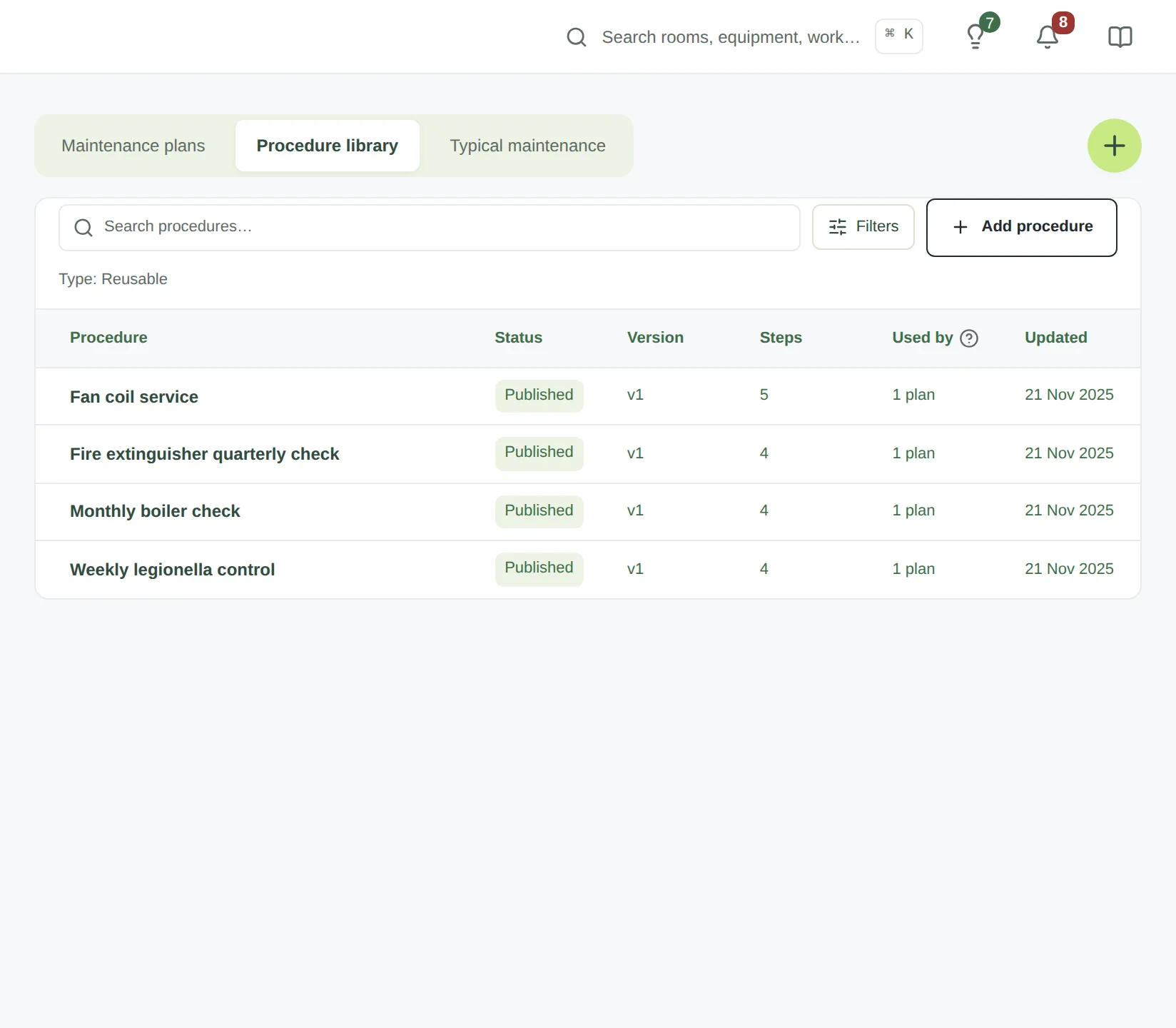
The list opens on Reusable procedures: those written as procedures, which any plan or work order can follow. When a plan is created with its own instructions or readings, they are kept as a procedure that is the plan's own: only that plan follows it, and Used by shows the plan's name. Choose Plan's own under Type in Filters to see them. To let other plans use one, open it and choose Make reusable. From then on, editing it changes it for every plan that follows it. A procedure counts as retired only when its latest version is retired: a procedure you edited stays Published, even though its earlier versions are retired.
Add a procedure
- Choose Add procedure, or Procedure in the + menu of any page.
- Enter the Procedure title. General instructions and Applies to, a note on what equipment and conditions it covers, are optional. A procedure is not tied to specific rooms or equipment: the plan or work order that uses it says where it is carried out.
- The form starts with one step, a task. Write its Instruction and choose the Answer type: a task to tick off when done, a reading, yes or no, a choice between options, text, or evidence files. A procedure with General instructions can do without steps: leave the first step untouched and it is not saved.
- For a reading, enter what is measured, the unit and, if you want, a minimum, a maximum or both.
- Tick Answer required on steps that must be answered. A required task must be ticked before the work can be completed. To ask for a photo or a file, add a step with the answer type Evidence files.
- For a choice, add the options and mark any that need follow-up, such as "Needs attention".
- Tick Open follow-up work when this deviates on steps that should open corrective work when the answer is out of range or needs follow-up.
- Choose Add step for each further check. To group steps under headings, as in the example above, choose Add section and give each section a Section title.
- If you want, under Source records, choose Add source to note the manual, standard or internal document the steps come from.
- To see the checklist as it will appear on a work order, choose Preview at the top of the form. You can try the answers there; nothing is saved. Edit takes you back with everything as you left it.
- Choose Add procedure. The procedure opens and can be used straight away. If something is missing, FixInn says what in the same window.
You can also describe the steps, or a change to a procedure, to the assistant, which prepares it as a card for you to check and edit before saving; a change is saved as the procedure's next version, as here. See Assistant.
Change a procedure
- Open it and choose Edit. Saving creates a new version, and earlier versions stay as they were.
- Plans using the procedure follow the new version from today, and so do their readings not yet recorded. Past values and work orders already issued keep the version they started with.
- Choose Retire version, with a reason, when a version should no longer be used. Existing records keep it.
Follow-up work
On work orders and readings, a step that deviates opens follow-up work when the work is completed. Its title is the procedure and the step, with the value or the option chosen, such as "Room check: Floor condition (Scratched)", and its description is the note written on that step. On inspections, the step is proposed as a finding for the inspector to confirm.