Equipment
Equipment is the list of the hotel's equipment: boilers, pumps, lifts, fan coils and anything else that needs its own maintenance history.
An example
A boiler is the classic case: it sits in one place, serves many others and builds up years of history.
Main boiler
- Code
- BOI-01
- Physical location
- Plant room
- Category
- Climate control
- Brand
- Example Boilers
- Model
- EB-300
- Serial number
- 20418
- Condition
- Good
- Serves
- Guest rooms, Laundry
- Groups
- Plant room equipment
- Warranty
- Example Boilers, until 30 June
- Next maintenance
- 1 April
When it helps: give something its own record when you want to look back at what was done to it and what it cost. Fan coils and pumps usually earn one. A light bulb usually does not: a work order on the room is enough.
The equipment list
Each row shows the equipment name and code, its Category, its location and attention icons. Tap an icon to read what it means, such as a low condition rating or open work. Use the arrow at the end of a row to see more details without leaving the list. Choose the name to open the full record.
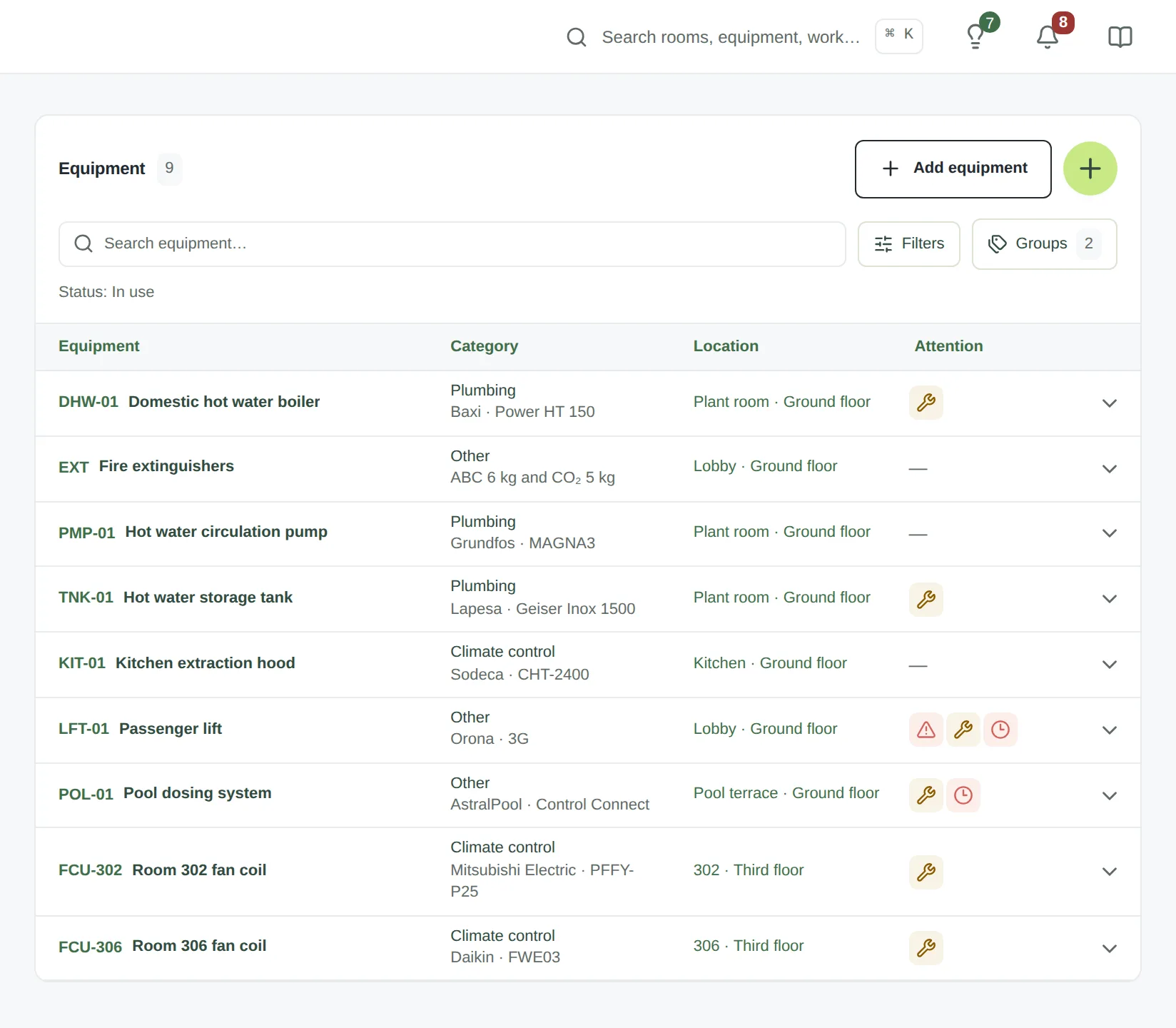
- Filters narrows the list by status, category, group, location, condition and attention. Tap the list's title to save filters, with the search, and choose a default one, as in the work list.
- Groups shows your equipment groups. Choose a group to show only its equipment.
Add equipment
- Choose Add equipment at the top of the page.
- Take or choose photos, the label first and then a wider view, or choose Dictate and say what it is and where. FixInn fills in the fields it can, each marked until you change it. See AI features.
- Fill in or check Equipment name, Physical location and Category. These are required.
- Optionally add the code, brand, model, serial number, condition, aliases, where it Serves and Parent equipment.
- If it has a warranty, tick Record a warranty, choose the Warranty provider and enter Covered until. Nothing about the warranty is saved if you leave it unticked.
- Choose Add equipment. The new equipment opens in the form's place; Back, or its ×, closes it.
The photos and your words are kept with the equipment.
Categories, types and groups
- Category is fixed and the same for every hotel: Drainage, Plumbing, Electrical, Building automation, IT, Climate control, Ventilation, F&B, FF&E, Building works and Other. Lifts, fire protection and pools go under Other.
- Groups are your own tags, such as "All fan coils". A piece of equipment can be in several groups. A document linked to a group shows on every piece of equipment in it. Create one with Groups, then Add group. To change a group, choose the pencil beside it. To stop using one, untick Active there: an inactive group keeps its equipment and history but takes no new equipment.
The equipment record
Ask the assistant at the top opens a new chat with this equipment already tagged. See Assistant.
Open a piece of equipment to see:
- Its details, groups and where it Serves. A boiler in the plant room can serve many rooms.
- Warranty: who covers it and until when, or Not recorded. Choose a warranty to open it, or Add warranty to record one. See Contracts.
- Next maintenance: the earliest due date from its plans, from the plans on several pieces of equipment that cover it, and from its open work. Add plan creates one for it when it has none.
- Costs, with how many of this year's work orders have them, corrective work and downtime recorded this year.
- Maintenance history: every work order, reading and inspection on it, in the same order as a space's: what is still to do first, then finished work, newest first. When it has them, its Last inspection with the outcome, its Open findings and its Latest report come first, and the rest follows under Recent history. A work order opens with its dates, answers and photos; the report opens as a file. Maintenance staff see their own work here and every completed inspection, which opens read only.
- Readings: a card for each value measured on it, with its latest value and trend. Tap one to open its Reading history. See Readings.
- Documents: its documents, the documents of its groups and the contracts that cover it. Choose Link document or Add document to add one. Technicians can open what is linked here, except documents with the Financial Access classification.
- Equipment assessments: condition ratings over time. Choose Record assessment to add one.
- Review / move equipment: record a move or a change in operational state. Earlier records stay.
Replace or retire equipment
Choose More (⋯) at the top of the record, beside Edit details. Managers see it while the equipment is in use.
- Replace equipment registers the new equipment in its place. It starts with the old one's name, location and category. Take or choose a photo of its nameplate, or choose Dictate, and FixInn fills in the brand, model and serial number, as in Add equipment; the photos and your words are kept with the new equipment. Choose whether to Add to the same groups and Cover by the same contracts. A warranty covers the old unit and stays with it. Tick Record a warranty to record the new equipment's own.
- Retire without replacement takes the equipment out of use.
Before you confirm, What will happen lists the effect. When you replace, the plans and open one-off work move to the new equipment, and upcoming checks are issued again there. A plan on several things that lists the old equipment lists the new one in its place from its next round. When you retire, the plans stop, upcoming checks are cancelled, and open work stays for you to finish or cancel. Missed checks and the full history stay with the old equipment, which then shows as Retired, with a link to its replacement. Once you replace, the new equipment opens; Back returns to the old one.