Readings
A reading is a value someone measures on a schedule, such as pool pH, boiler pressure or water consumption.
Under the hood a reading is a step of a procedure, and a reading plan is a maintenance plan whose procedure has that step. You do not need to think about this to create one: FixInn creates the procedure for you.
Each due reading is a work order of type Reading, so it is listed in Work with the rest of the work, with its own number. Opening it opens its own window, where the value comes first.
An example
The pool's pH is checked every day. This is the plan, followed by one week of readings:
Pool pH
- Equipment
- Outdoor pool
- Plan type
- Reading
- Unit
- pH
- Minimum
- 7.2
- Maximum
- 7.6
- Frequency
- Daily
- Responsible
- Pool maintenance
| Day | Measured value | Result |
|---|---|---|
| Monday | 7.4 | In range |
| Tuesday | None | Missed, and it stays missed |
| Wednesday | 7.9 | Out of range. If the reading asks for follow-up, a corrective work order opens |
| Thursday | 7.5 | In range |
These limits are only an example. Take yours from the source you rely on, such as the manufacturer or your own rules.
When it helps: use a reading when the number itself matters over time, because the equipment's record shows the values and their trend. If you only need to know that a job was done, use a maintenance plan.
Set up a reading
- Open Maintenance plans and choose Add plan.
- Enter the Plan name.
- Set Plan type to Reading.
- In Equipment or location, choose the equipment. If the reading belongs to a place rather than a machine, such as the pool terrace, choose that location instead.
- Enter the Unit, such as pH, °C or m³.
- Add a Minimum, a Maximum, both, or neither. Water consumption, for example, needs no limits.
- Choose the Frequency, First due date and who is Responsible.
- Choose Add plan. The new plan opens; Back, or its ×, closes it.
Change a reading
Open the plan and choose Edit readings to change a reading's name, unit, limits or follow-up, or to add or remove readings. The change applies to readings from today. Values already recorded keep the verdict they had.
Several readings at once
A reading plan is one or more numbers taken together. To record several values at once, such as pH and chlorine on the pool, choose Add another reading when you create the plan, or later under Edit readings, and give each reading a name. Each value is saved as it is given, so the values can be given at different times or by different people, and one photo of a display that shows them all fills them all. The reading is done once every value is in and it is recorded.
A reading plan never has a procedure. If the round also has steps that are not numbers, such as checking that the pool cover is closed, add a maintenance plan with a procedure that includes Reading steps: its numbers still appear in the equipment's readings and trend.
Record a reading
The responsible person sees each due reading in My work. A reading given to a group is taken first with Take task, as any group task is, and then recorded. If you have a question first, Ask the assistant in the reading's window opens a new chat with the reading tagged, and you can give it the values there, all of them or only some: with some missing, its card saves those you gave, and the assistant says which are still missing. See Assistant.
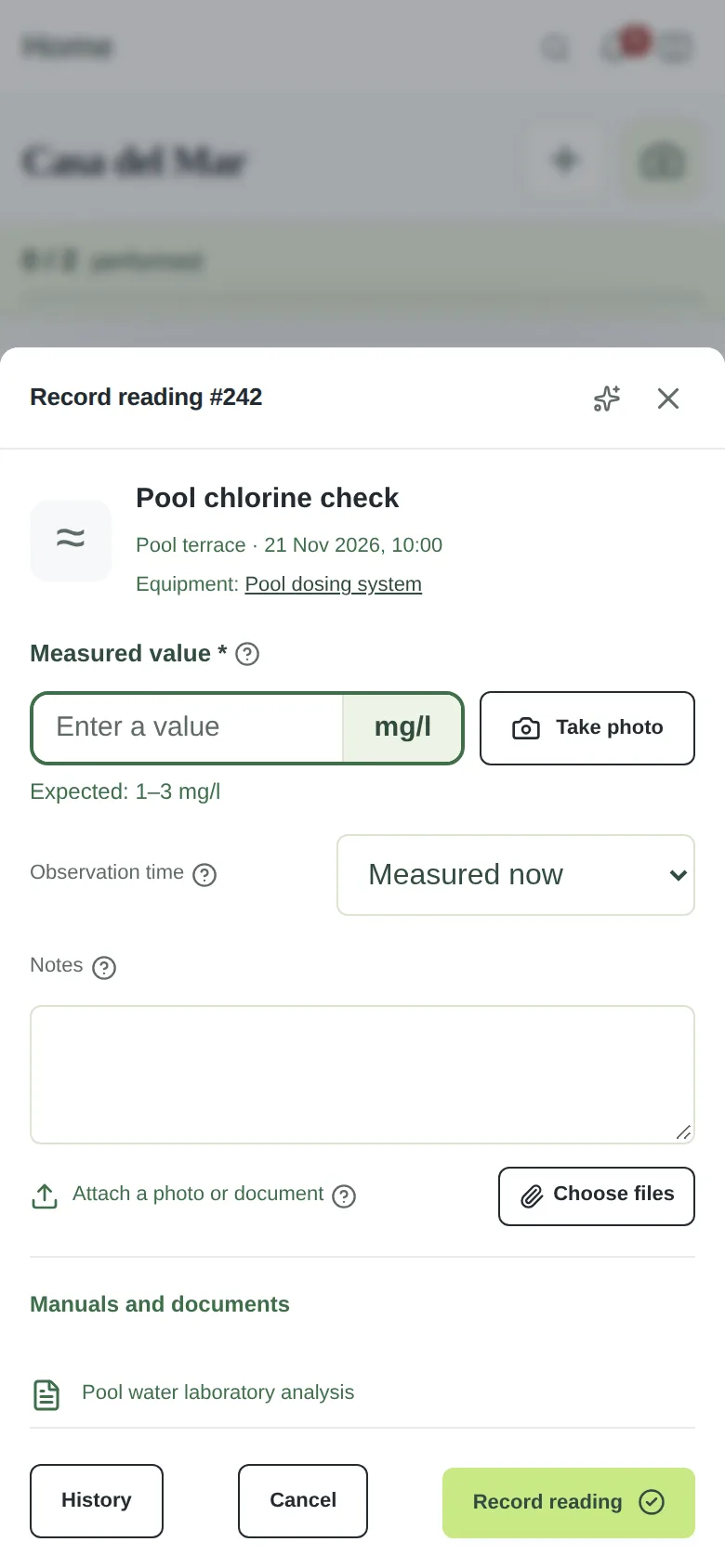
- Tap the reading. The box for the Measured value is ready to type in, with the expected range under it. The equipment the reading is for appears under its name; tap it to open the equipment in a new tab.
- Enter the Measured value, or take a photo of the meter with Take photo, beside the value: FixInn reads the number it shows and fills it in. Check it before saving.
- Read the instructions, if there are any.
- Choose Measured now, or Enter the actual time if you measured earlier.
- Add Notes if useful.
- Choose Record reading. It stays at the bottom of the window, next to History, however far you scroll.
Each value is saved as you leave its box, with who gave it: close the window and the values stay, and whoever opens the reading next sees them. The reading is done only when every value is in and you choose Record reading. FixInn records who took the reading and when.
Under the form:
- Manuals and documents lists the files linked to this reading and its equipment. Each one opens in a new tab. If there are none, the section does not appear.
- History, next to Record reading, shows the last five readings with Show more for earlier ones. Their heading (Past readings, or the reading's name when the plan has several) opens the reading's full history in a new tab, so the value you are typing stays where it is. If the equipment has been inspected, it also shows the Last inspection and any Open findings.
A value that was corrected shows only its corrected value here; open the reading to see the correction.
Out-of-range values
A value below the minimum or above the maximum is marked as out of range. Each recorded value says In range, Below minimum or Above maximum, with its limits, in your language. If the reading asks for follow-up, a corrective work order opens automatically: high priority and due today. Its title is the plan, the reading and the value, such as "Legionella check: Hot water (55 °C)", and its description is the note written with the value.
Where to see readings
There is no separate page for readings. Open the equipment or the space they belong to, or the reading plan: its Readings section has a card for each reading, with its latest value and a small trend. Readings with the same equipment or space, metric and unit form one history.
Reading history
Tap a reading's card to open its Reading history, which covers every value ever recorded. At the top:
- Latest: the last value and its date.
- Last 30 days: how much the value changed since the first reading of the last 30 days.
- Out of range: how many values were outside the limits, out of all of them.
- Below minimum or Above maximum: roughly when the value reaches that limit if it keeps changing at the rate of the last 30 days. It is a straight line drawn through those values, not a forecast. It appears only when the latest value is in range, at least three values were taken in the last 30 days, and the date is within 90 days.
Below them is a chart of every value, with the limits as a green band and out-of-range values in red. Point at the chart or tap it to see a value, its date and who took it.
Values lists them newest first, five at a time with Show more. Each value links to the reading it was recorded on and, if it was out of range, to the work order opened from that reading.
The equipment's name at the top takes you back to the equipment. Ask the assistant opens a new chat with the equipment tagged and the reading's name after it, ready for your question, such as "is the pressure dropping faster than before?". The assistant reads the same history and quotes the same figures.
Missed readings
A reading that nobody took becomes missed and stays that way. Saving today's reading only records today. You can still record a missed reading with the time you actually measured on its own day: the reading is then done, and its day stays missed. The missed days stay visible in the plan's Check history.
A reading missed with some of its values given keeps them, with who gave them, and the logbook prints them on its missed day. A value out of range opens its follow-up work when the day is missed, once: recording the reading later does not open it again.