Documents
Documents is the hotel's library of manuals, certificates, warranties, drawings and visit reports. FixInn keeps every original file exactly as uploaded.
An example
The company that services the boiler leaves a signed visit report, and you keep it with the boiler:
Boiler service report, March
- Document type
- Visit record
- Responsible person
- Mike
- Tags
- Example Boilers
- Details
- Yearly service. Burner cleaned, no faults found.
- Related equipment and records
- Main boiler
- Access classification
- Operational
When it helps: the next time someone asks for proof of the service, or a technician needs to see what was done, the report is on the boiler's record, unchanged from the file you uploaded. An invoice with prices would be Financial instead.
Add a document
- Choose Add document beside the + at the top, drop a file onto the page, or choose Document in the + menu of any page.
- Add the file with Choose files or Take photo, or drop it on the form. Its name becomes the Title until you type one.
- Choose the Document type.
- Choose the Responsible person. It defaults to you.
- Add Tags if useful: a provider, a status or a free label.
- Write Details, or use Dictate.
- Link it to equipment and other records under Related equipment and records.
- Choose the Access classification. Operational documents linked to equipment can be opened by technicians. Financial documents are for managers only, so choose it for anything with prices, invoices or quotes. If you get it wrong, open the document, choose the other one and then Change access.
- Choose Add document.
Each document has a file of its own, of up to 10 MB. A file already in one document cannot be added to another.
A photo, PDF or text file opens in the browser's own viewer, where you can zoom, turn the pages, share or save it; a file of any other type downloads. In the phone app every file opens in the phone's own viewer, or in an app of the phone that opens its type, and closing it brings you back where you were; an Android phone with no such app offers to share or save the file. This is the same for every photo and file in FixInn: on work orders, equipment and readings.
Find documents
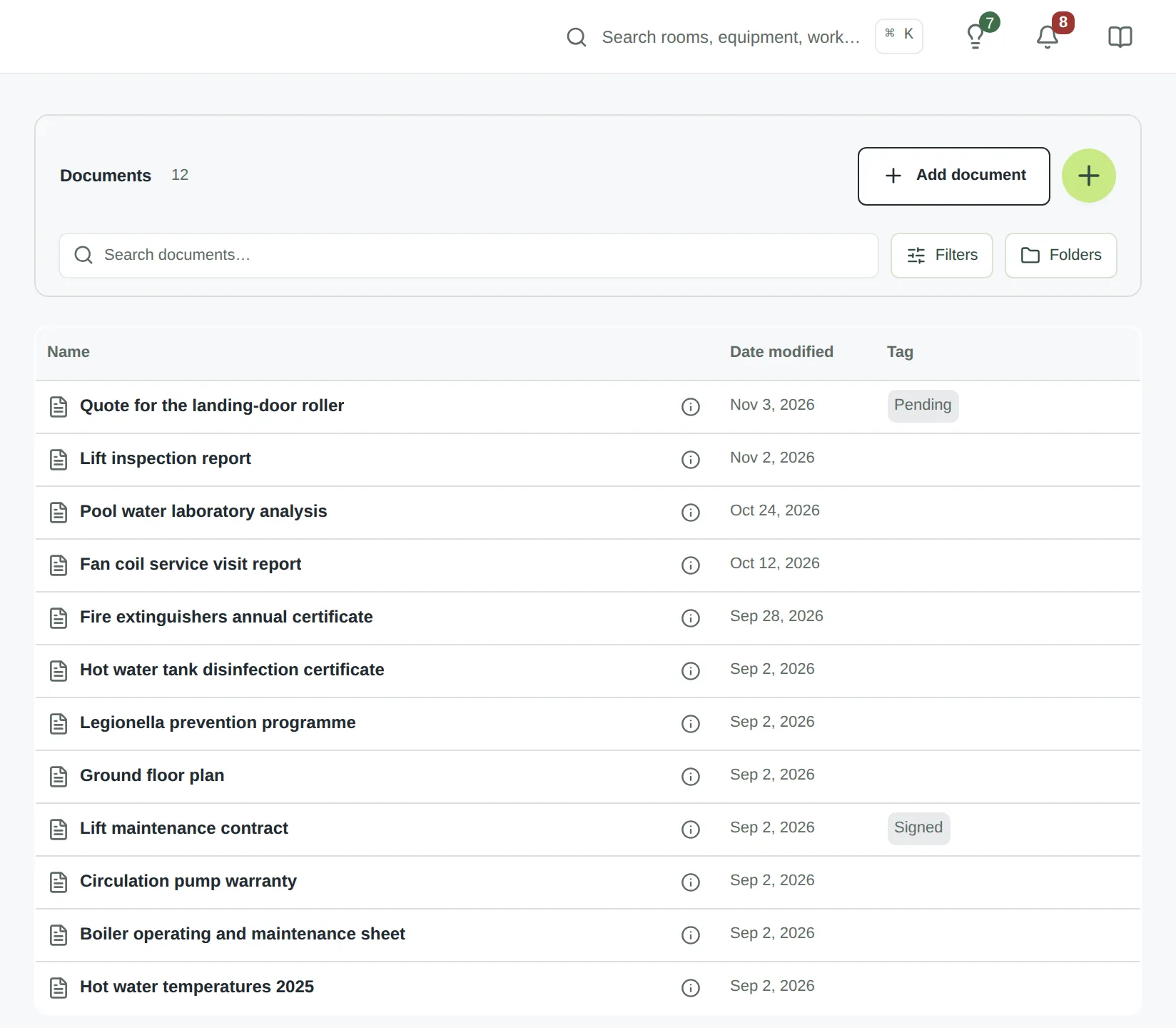
- Filters chooses one or more of each Type, Year, Equipment and Tag, and the Sort order. Each value shows how many documents it would list.
- Tap the list's title, Documents, to choose a saved filter. Save filter keeps the search and filters under a name; Default opens the library with them. The sort order is not saved. See the work list.
- Folders shows the same documents as virtual folders. Choose the levels, such as type and then year, in Configure folder hierarchy. Your browser remembers them.
- Choose a document to see its details: beside the list on a computer or an iPad on its side, and over the list on a phone or an upright iPad.
- The search box finds the documents that hold every word you type, in any order, ignoring accents and capitals: "fan coil report" finds Fan coil service visit report. It looks in the title, file name, tags, details and automatic summary, and in the text read from the file. Documents found by their file's text join the list a moment after you stop typing, and Filters counts them too.
Change a document
Open the document and change its title, Document type, Responsible person, Tags, Details or Related equipment and records where they are shown. Each change saves itself.
To change who can open it, choose the other Access classification and then Change access.
To replace the file, choose Add version, add the new file and, if you like, a Reason for this version. Version then shows the document's earlier files, which stay as they were. Document history, under Document details and history, lists every change: who made it, when, and what it changed.
Documents on equipment
Documents linked to a piece of equipment, or to one of its groups, show on that equipment's record. You can also upload or link a document from there.
Automatic analysis
When a document's file is added, here, on a piece of equipment or by the assistant, FixInn reads it, so the search finds the words inside it. A PDF's text is read from the file itself. Photos and PDFs also get an Automatic summary, which is not reviewed: check it against the original before relying on it. If the file could not be read, or no summary could be written, Analyze original tries again. See AI features.
Extracted text shows the text read from the file when you open it. Only people who may open the file can read or search its text: managers, and technicians for an Operational document linked to equipment.