A technician's day
This quick start is for maintenance staff. FixInn is designed to be used on the phone, but everything also works on a computer.
Your home: My work
When you open FixInn, you see your hotel and My work.
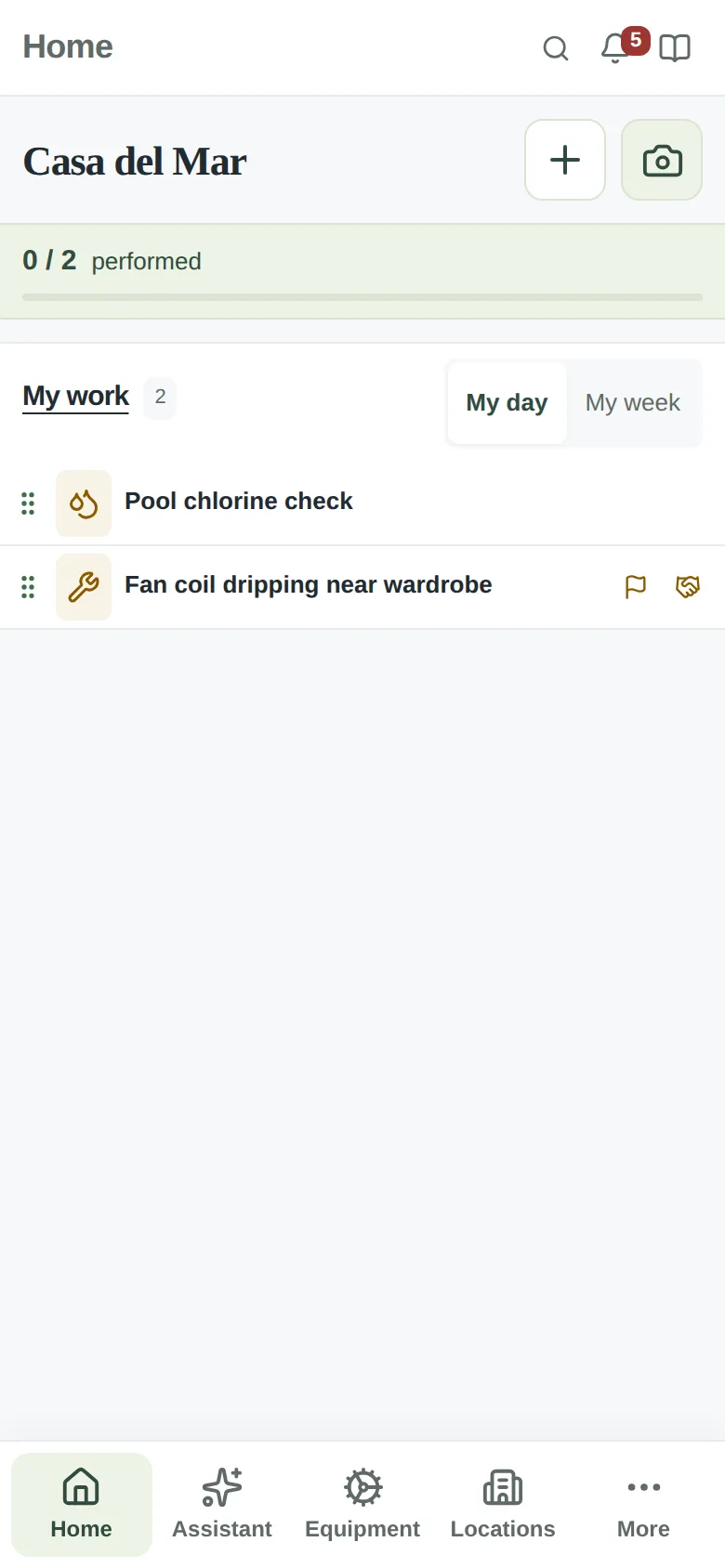
- My day shows what is due today and anything still outstanding from earlier.
- My week shows the next seven days, grouped by day.
- The counter, for example 0 / 2 performed, shows how much of the period you have done.
Each row shows the type of work, its title and small warning icons. Tap an icon to read what it means: high or urgent priority, guests affected, an external company involved, a maintenance contract, or a warranty. A warranty icon means a recorded warranty covers the equipment today. Check its conditions before you repair; it does not confirm the repair is covered.
Put your day in order
Drag a row by its grip to change the order, or use the keyboard. FixInn saves your order automatically. Your order never changes due dates. If your manager sets an order in Planning, that becomes your starting point.
Do a task
- Tap the title to open the task.
- Read the instructions and look at the equipment and room it is for.
- If the task has a checklist, answer each step. Tick tasks as you do them. Some steps need a photo or a value. Each answer is saved as you give it, so you can close the task and carry on later.
- Add photos with Take photo or Choose files. Until you leave the task you can crop and draw on a photo, or remove it with its ×; then it is saved on the task.
- When you finish, tap Complete work at the end of the checklist, or Completed in the status buttons under the task's title: both complete it, with the date in Performed on, today unless you change it. For a longer job, tap In progress first, so the hotel sees it is under way; it is not required. Work from a plan can be done before its due date unless the plan says no; then these buttons stay greyed out until the due date, and tapping one says the date.
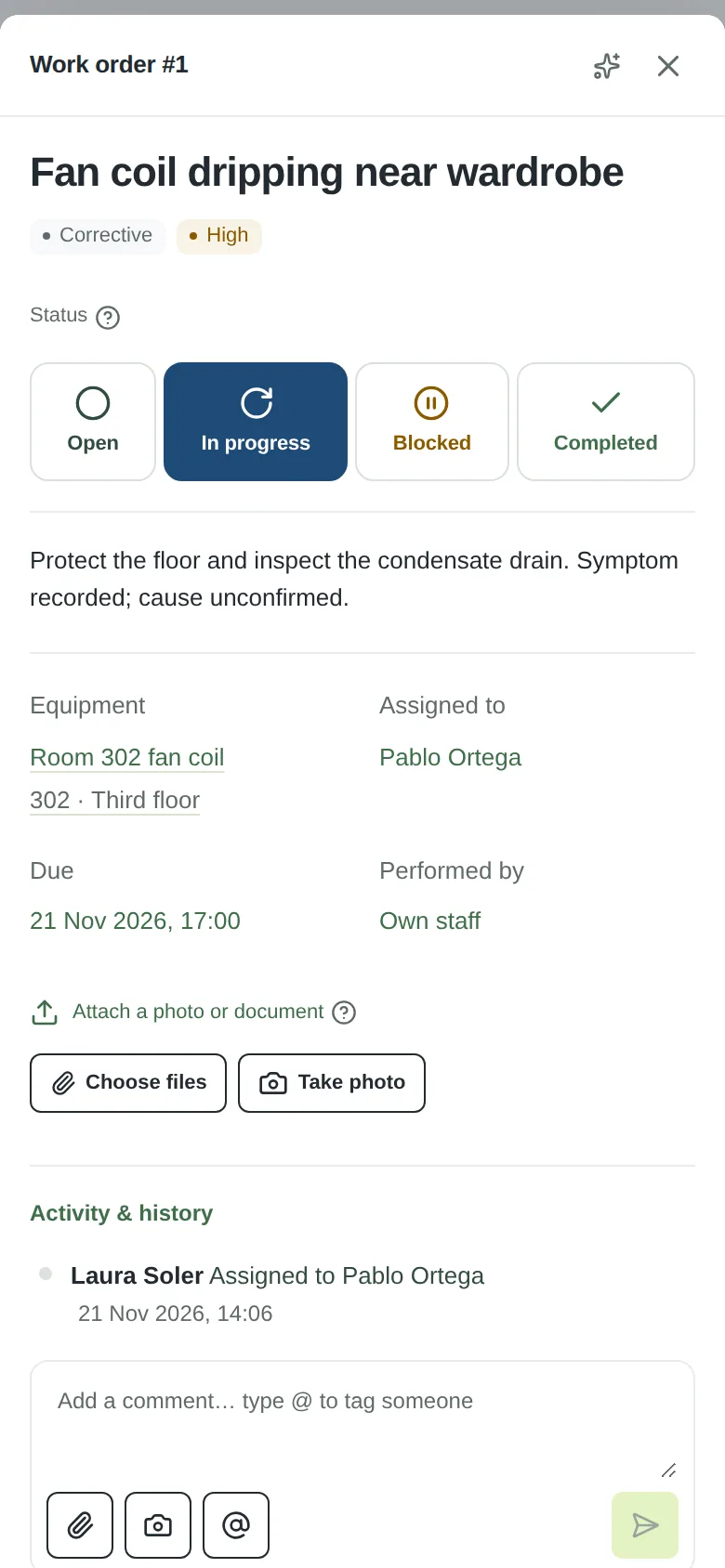
If a required answer or photo is missing, FixInn will not let you complete the task: it names what is missing and takes you to it. If only optional steps are unanswered, it asks first how many; Cancel takes you back to the first one.
Record a reading
Some tasks are readings, such as a pool pH check.
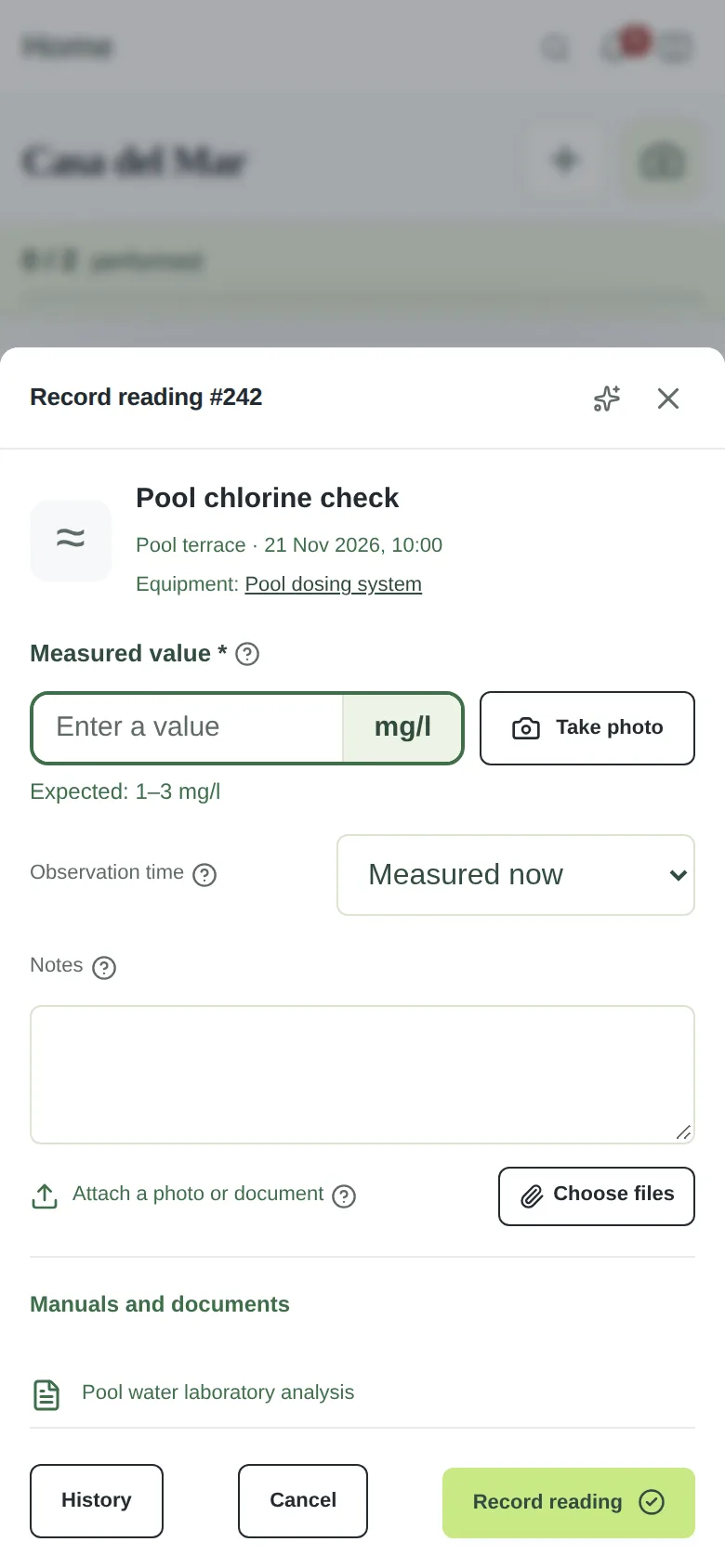
- Tap the reading in My work.
- Enter the Measured value. Choose Measured now or enter the actual time.
- Add Notes or a photo if useful, then choose Record reading.
Under the form, Manuals and documents opens the linked files, and History shows the last readings and, if the equipment has been inspected, its Last inspection.
If the reading has limits and the value is outside them, FixInn can open a follow-up work order automatically. Saving today's reading never fills in checks that were missed on earlier days.
If you cannot do a task
Open it and write a comment, typing @ to tag your manager. Your manager gives the task to someone else.
Report something you spotted
Use the + button next to the hotel name to report an issue, or the camera button beside it to start with a photo. See Report an issue.
If you already fixed it, tick I already fixed it and say what you did, then choose Save as fixed. The work order is saved as yours and completed, so it does not wait for review.
Find older work
Tap My work to open the full list of your work, including completed tasks and readings. Work still to do comes first: overdue, then urgent and high priority, then the soonest due date. Search your work finds work as the work list does, a reading by what it records too, such as pH. Use Filters to choose statuses or types under Status and Type. To return, tap Home, in the bottom bar on a phone, or Back to Home on an iPad or a computer. Finished work is listed for the last 30 days; change Finished work shown to see more.
See what an inspection found
Open a piece of equipment from Equipment to see its Maintenance history: its Last inspection with the outcome, its Open findings and its Latest report, then the rest. You can open every completed inspection there, whoever did it, to read its outcome, answers and report. An inspection that is not yours opens read only and is not in My work.