Home
Home is the first screen you see. What it shows depends on your role.
Managers, owners and administrators
You see what is waiting for you at the selected hotel, as lists. Each row opens its record, and a list with nothing in it is not shown:
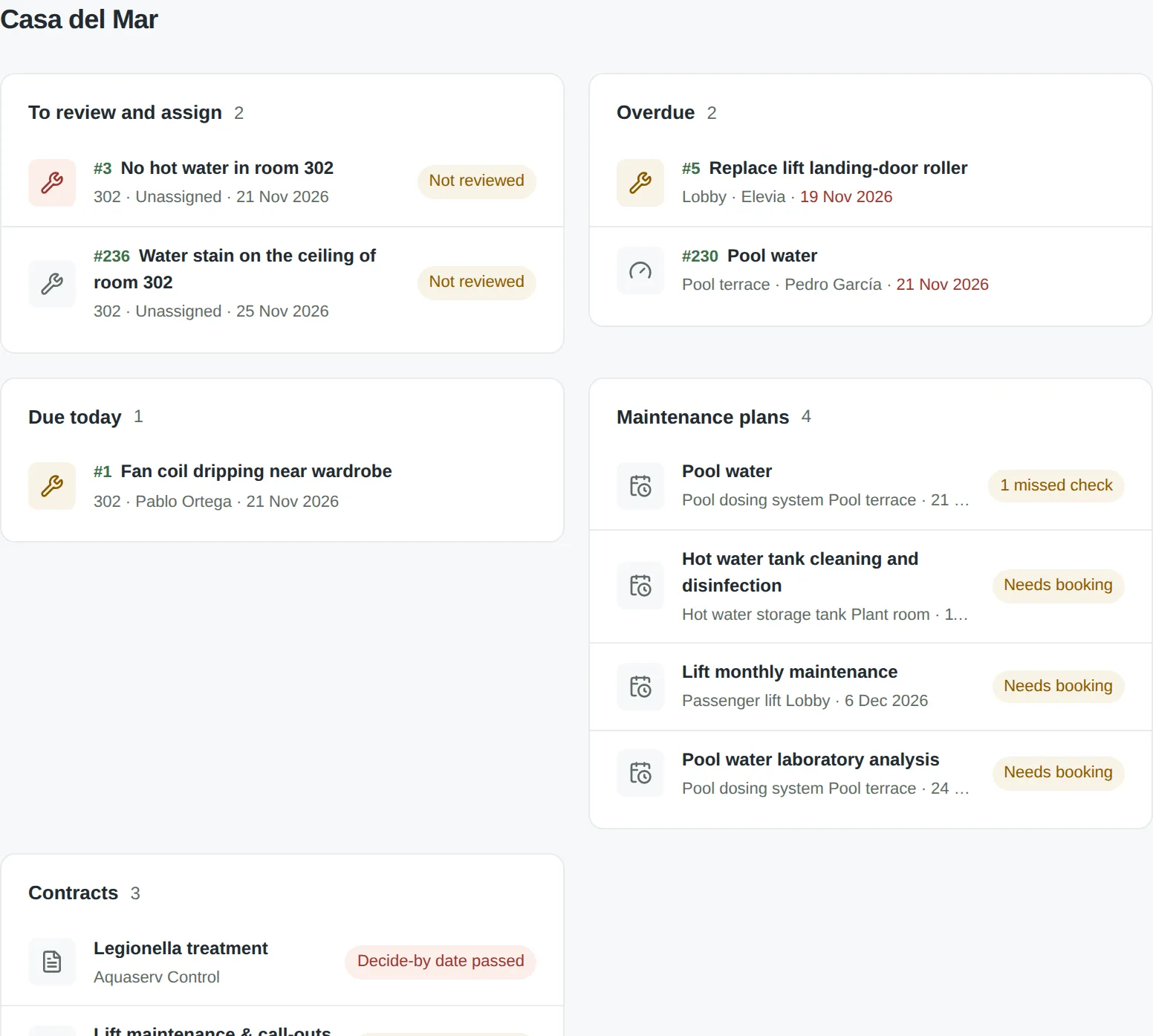
- To review and assign: reported issues nobody has reviewed yet (marked Not reviewed) and work nobody is assigned to, with plans that have nobody responsible.
- Overdue: work past its due date.
- Due today: work due today.
- Blocked: work that cannot go on.
- Maintenance plans: plans with missed checks, or with a visit still to book with the provider.
- Contracts: contracts whose term has ended or whose decide-by date has passed, is close or has not been checked.
Each list puts the most important first: overdue, then higher priority, then the sooner due date. It shows five rows, and a button below shows the rest. A record appears in one list only, the first it belongs to. The lists apply the same rules as Work, Maintenance plans and Contracts.
Last comes Setup, while the hotel still lacks something to be set up: Add locations, Add equipment, Add maintenance plans and Add documents, each opening its page. A row is crossed out as soon as the hotel has one floor or space, one piece of equipment in use, one plan or one document, whoever added it; when all four are crossed out, Setup goes. It is not counted as waiting. With nothing waiting and nothing left to set up, Home says Nothing waiting.
When you have more than one hotel, your hotels come first, each with how many records are waiting there; choose a hotel to see its lists. On a computer or tablet they are a column on the left of a map; with more hotels than fit beside the map, the column scrolls. On a phone, only the hotels, with the + at their right.
Maintenance staff and contractors
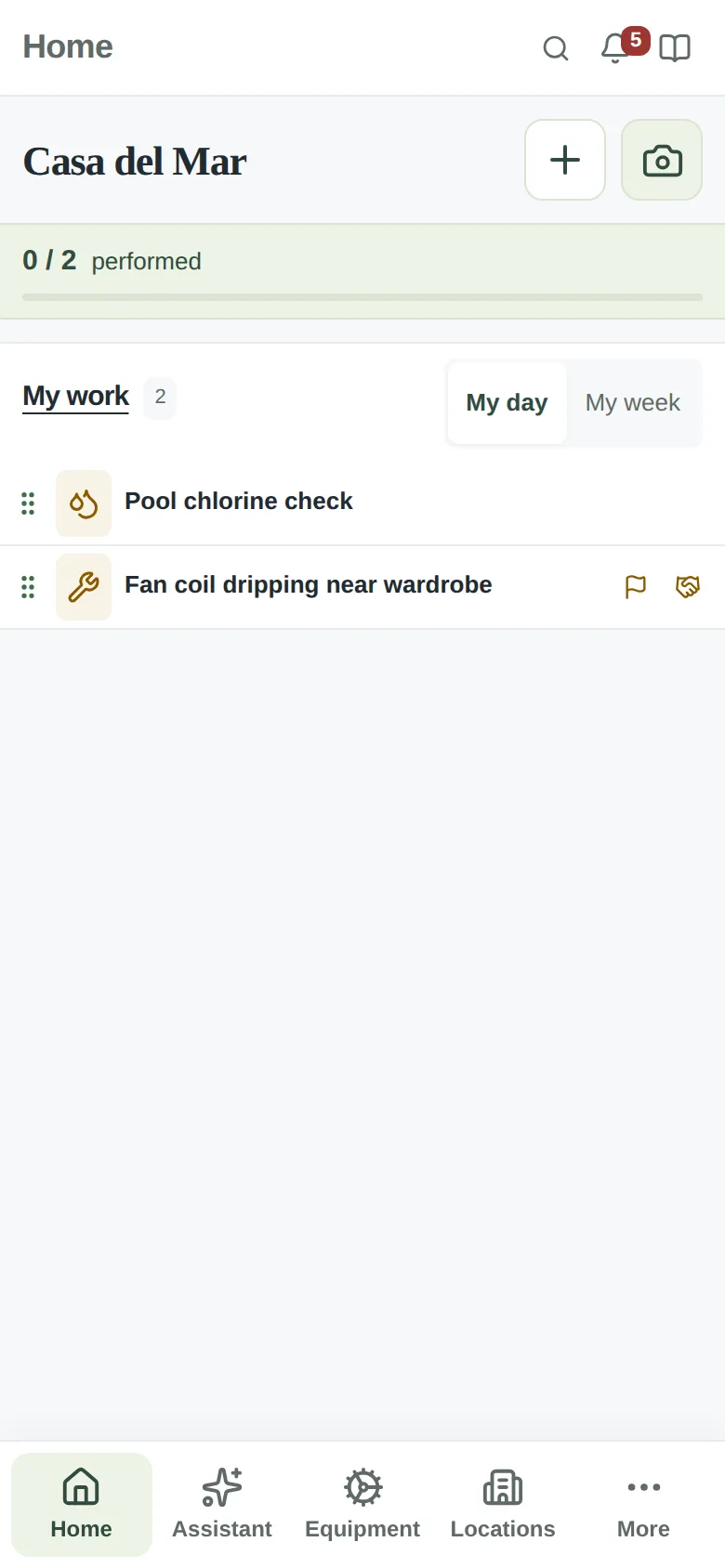
You see My work for today or the coming week. See A technician's day and Working as a contractor.
Reporters
You see the buttons to report an issue. My reports is in the menu; on a phone, in the bottom bar. See Report an issue.
Things available everywhere
- Search: choose the search box at the top, or press Ctrl+K (⌘K on a Mac). It finds rooms, equipment, work and contracts by name, code, alias and recorded notes, ignoring accents and capitals; a work order also by its number ("242" or "#242") or a reading it records ("pH"), as the work list finds it, and each result opens its record. Among work orders it searches open work and work finished in the last 30 days; Search every date adds the older ones. It does not search inside files; use Documents for that.
- A manager's + button, at the top of the page, adds a work order, an issue, equipment, a plan, a contract, a company, a person or a location. A technician's +, beside the hotel name, reports an issue.
- The bell shows your notifications, such as mentions and new assignments; managers also have Needs attention for the hotel as a whole. See Notifications.
- Assistant opens a chat that answers from your records and prepares changes as cards you accept. See Assistant.
- The hotel selector changes the hotel you are working in. On a phone, managers find it as the hotel icon at the top right; everyone else taps the hotel's name at the top of the page. It shows when you have more than one hotel.