Locations
Locations holds the places in your hotel: buildings, floors and spaces. Equipment and work orders point to these places, so set them up first.
An example
One floor of a hotel, with a space of each area type:
Floor 1
| Space | Area type |
|---|---|
| Room 101 | Room |
| Room 102 | Room |
| Corridor 1 | Public area |
| Linen store | Back of house |
| Pool terrace | Exterior |
When it helps: when each room exists as a space, an issue in Room 101 is recorded against Room 101, and the space shows all its open work and history. Add the spaces you actually maintain. You can add more at any time.
How places are organised
Places go Building → Floor → Space. For example: Main building → Floor 1 → Room 101.
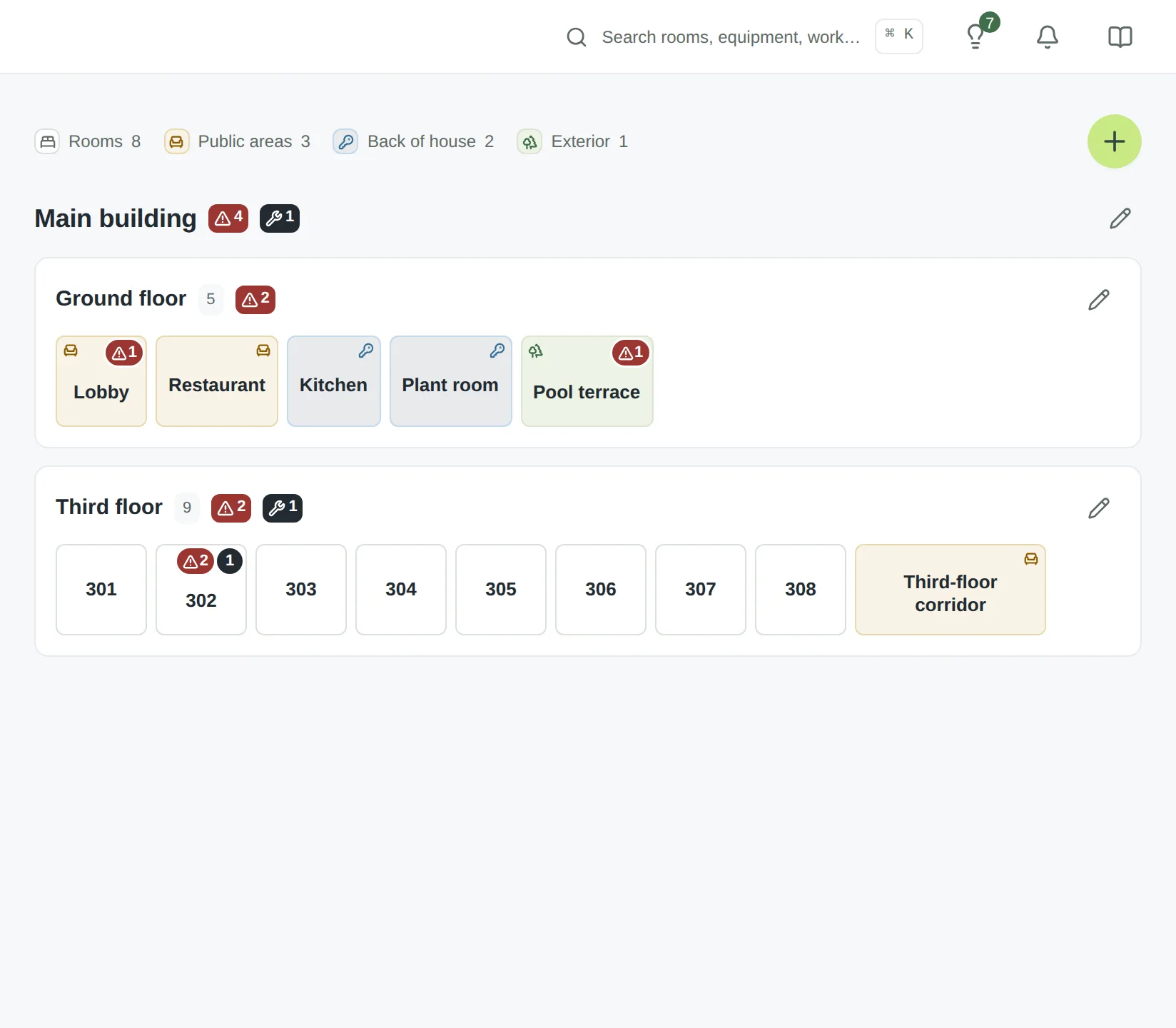
- Every hotel starts with one building, Main building. New floors go there unless you choose another building. A hotel with one building never needs to deal with buildings.
- Every space belongs to a floor and has one of four area types, shown by colour: - Room: guest rooms. - Public area: other places guests can see, such as the lobby, corridors and restaurant. - Back of house: staff-only areas, such as plant rooms and laundry. - Exterior: anything outside, such as the pool terrace and car park.
The Edit menu
Each building and each floor has one Edit button, the pencil at the right of its name. It opens a menu with what you can do there:
- On a building: Edit building, Add floor, Add space, Add building and Arrange.
- On a floor: Edit floor, Add space, Add floor and Arrange.
What you add starts where you opened the menu: Add floor on a building goes to that building, Add space on a floor goes to that floor, and on a building to its first floor. You can change it in the form before you add it.
Add floors and spaces
- Choose Edit beside the building, then Add floor. Type its name and choose Add floor again.
- Choose Edit beside the floor, then Add space. Type a name, pick the Area type and choose Add space again. The new space opens; Back, or its ×, closes it.
A space can also have Aliases (comma separated) and Notes:
- Aliases are other names people use for the space, such as "Habitación 302" or "back corridor". Search, the assistant and issue reports find the space by any of them.
- Notes are what anyone working there should know, such as where the key is. They show on the space.
To add another building, choose Add building in a building's Edit menu. The + menu also has Space, Floor and Building, which is how an empty hotel starts.
Change the order
- Choose Edit beside a building or floor, then Arrange.
- Drag buildings, floors and spaces into the order you want. Spaces move within their floor.
- Choose Done to save, or Cancel to discard.
Outside Arrange, nothing can be dragged.
See which spaces have an issue
A space with an issue, something there that needs maintenance now, has badges in its top right corner with how many issues it has of each kind:
- A red badge with ⚠ for those urgent or overdue: a repair or report with Urgent or High priority, work past its due date, or a maintenance plan there with missed checks.
- A dark badge for the rest: an open repair or report, or equipment there that is out of service.
Scheduled work that is not yet due is not an issue, whatever its priority. Each floor and each building adds up its spaces' badges beside its name, in red with ⚠ and dark with the wrench; with more than one building, the hotel's totals show at the top of the page. Choose a count to see only the spaces with issues of its level; choose it again to see every space. While you arrange, the badges and totals are hidden.
You see the issues of the work you can see: a technician or an external company, only those of their own work.
Open a space
Choose a space tile to see its details: its area type and floor, its notes, the equipment located in it or serving it (Out of service when it is), and its open work and history: what is still to do first, overdue and most urgent at the top, then finished work, newest first. When a maintenance plan is on the space or covers it, Next maintenance shows its next date. Report an issue starts a report with the space already filled in. Edit details changes its name, area type, floor, aliases and notes; while you edit, only those show. Ask the assistant opens a new chat with this space already tagged. See Assistant.
Rename or remove
- Edit building and Edit floor, in the Edit menu, and Edit details on a space, change its name and details. Renaming keeps every link to equipment, work and history.
- Remove building, Remove floor and Remove space are inside those forms. A building can be removed once it has no floors, and a floor once it has no spaces.
- A space can be removed once no equipment is located in it or serves it, and it has no open work and no active plan. Its finished work and readings stay in the history under its name.